
IPTV Smarters Pro Not Working? Fix Login, Playlist & Playback (2026)
IPTV Smarters Pro Not Working? Fix Login, Playlist & Playback Issues (2026)
IPTV Smarters Pro not working? The quickest fix depends on what fails: signing in, loading your playlist, opening a channel, or keeping a stream playing. Rather than resetting everything, use this guide to identify the symptom and test one cause at a time.
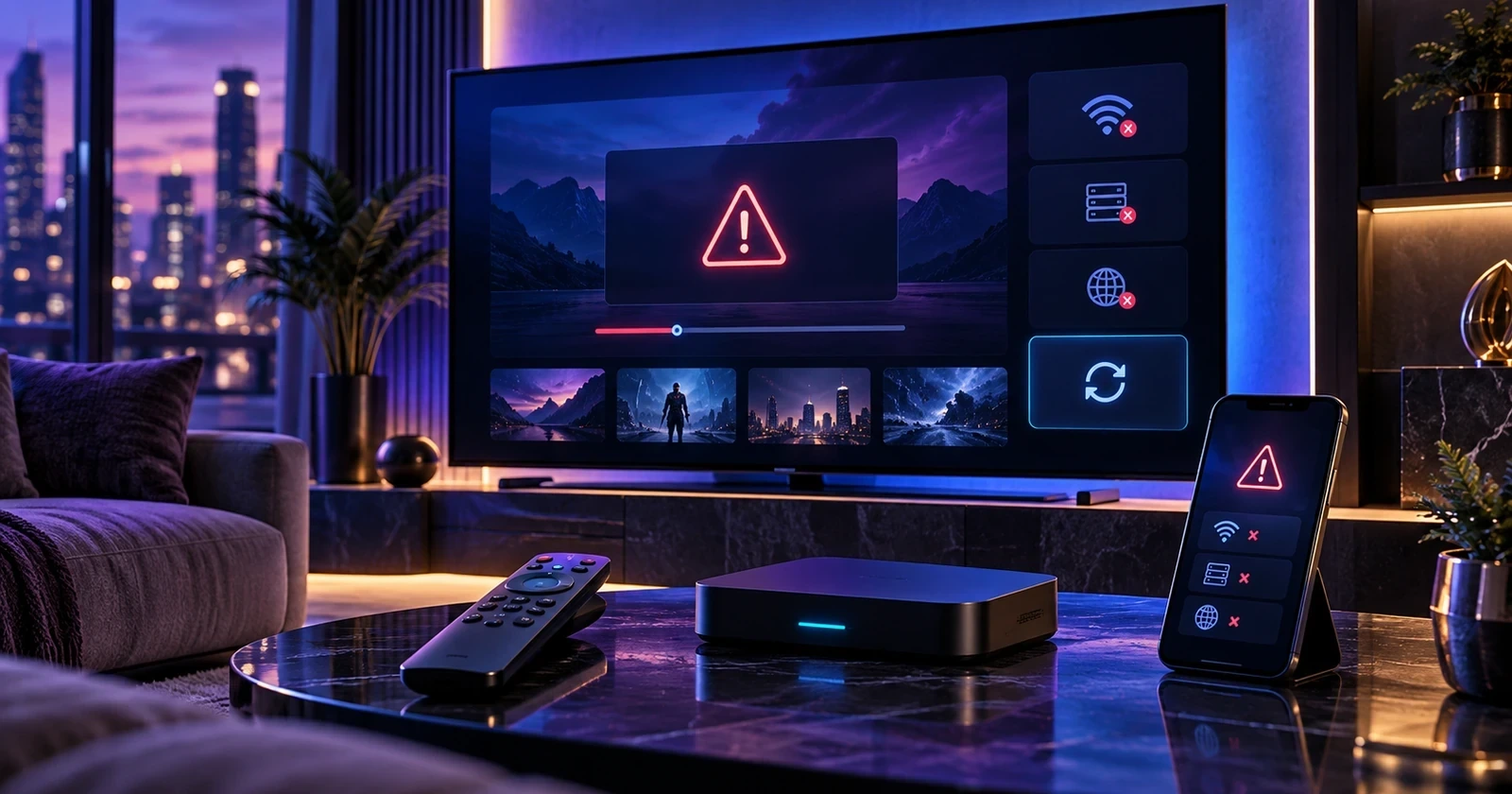
This 2026 troubleshooting guide covers common problems on compatible Fire TV, Android TV, Smart TV, phone and tablet setups. The illustrated screens accompanying this article are conceptual troubleshooting visuals, not official screenshots of the IPTV Smarters app. Menu labels and available settings may differ by app version and device.
Quick answer: Confirm your internet connection, check the account and server details you were given, restart the player, and test whether one channel or every channel is affected. Save your login details before clearing app data or reinstalling. Use IPTV services and streams only where you have the appropriate rights and authorization.
IPTV Smarters Pro troubleshooting: find your symptom
Start with the problem you actually see. A wrong password and a playback codec problem will not have the same solution.
| Symptom | First useful check |
|---|---|
| Login failed / invalid details | Server address, username, password and account status |
| Cannot connect to server | Internet connection and exact server URL |
| Playlist not loading | Correct login method, playlist source and service availability |
| Channels appear, but nothing plays | Try more than one authorized channel and check connection limits |
| Black screen or sound without video | Device playback compatibility and the affected stream |
| Constant buffering | Wi-Fi stability, network load and whether other streams work |
| Fire TV app freezes or closes | Restart the device, check updates and clear temporary cache |
| EPG / TV guide is empty | Guide data source, refresh and time zone |
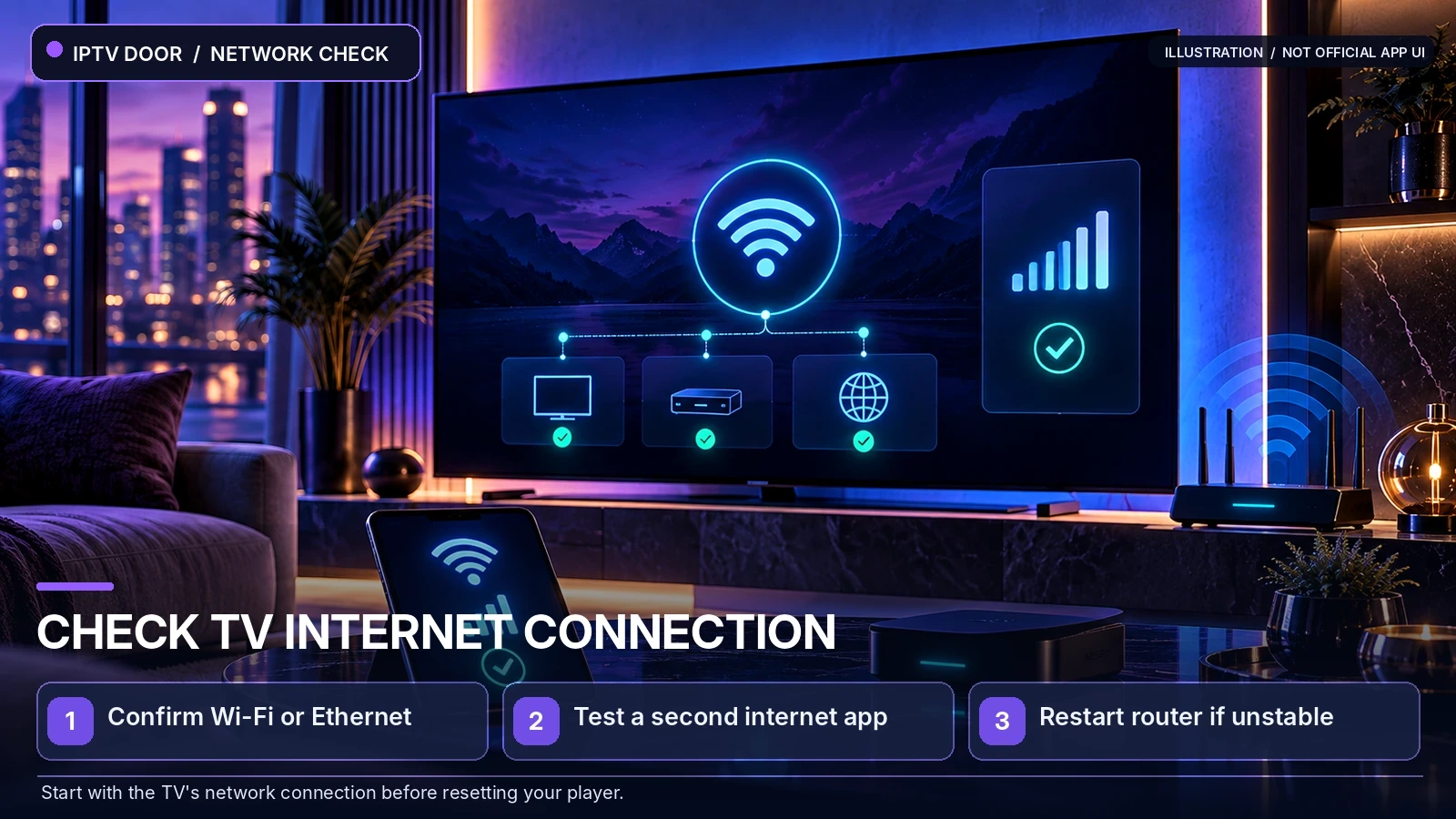
1. Check your internet connection before changing the app
First make sure the affected device can reach the internet. Open a trusted website or another connected app. If nothing loads, check your Wi-Fi or Ethernet connection before troubleshooting IPTV Smarters Pro itself.
- Verify the device is connected to the correct network.
- Test a website or another legitimate streaming app.
- Close and reopen your IPTV player.
- If the network seems unstable, restart the router and allow it to reconnect.
- Try again after stopping large downloads on other devices.
If other apps work normally, the next step is to check login, playlist and playback rather than assuming the whole internet connection is down. Read our IPTV Internet Speed Guide for a more detailed explanation of stability, bandwidth and multiple streams.
2. Fix IPTV Smarters Pro “Login Failed” or “Invalid Details”
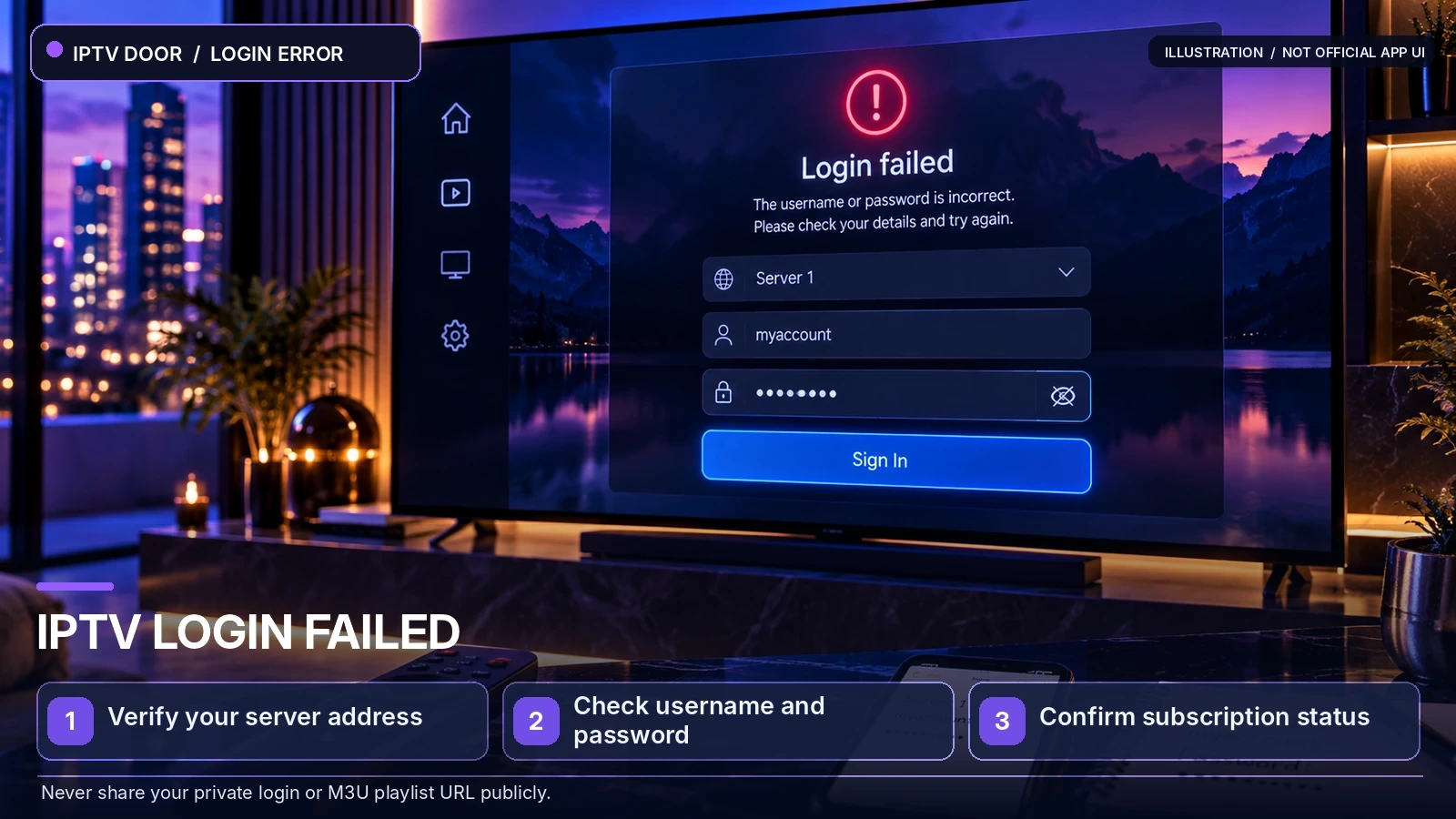
A login error means the player could not complete authentication; it does not automatically mean the streaming device is defective. Depending on the method your provider supports, confirm the following before changing anything:
- Server URL: copy the full address from the authorized provider, including its protocol and port if supplied.
- Username: check letter case, extra spaces and look-alike characters.
- Password: use the password belonging to the subscription account, not the TV or app-store password.
- Login method: distinguish between a supported account-based login and an M3U playlist URL.
- Account status: confirm the service is currently active.
When a player supports an Xtream Codes-style account screen, the fields may include a playlist name, server address, username and password. A playlist name may simply identify the profile on your device; the connection details must match the provider’s instructions.
What if login worked yesterday?
Restart the app first. If credentials were previously valid, ask the account provider whether a subscription expired or any authorized server settings changed. Avoid guessing different URLs or ports. Never share passwords, private M3U URLs or complete account credentials publicly.
3. Fix an IPTV Smarters playlist that will not load
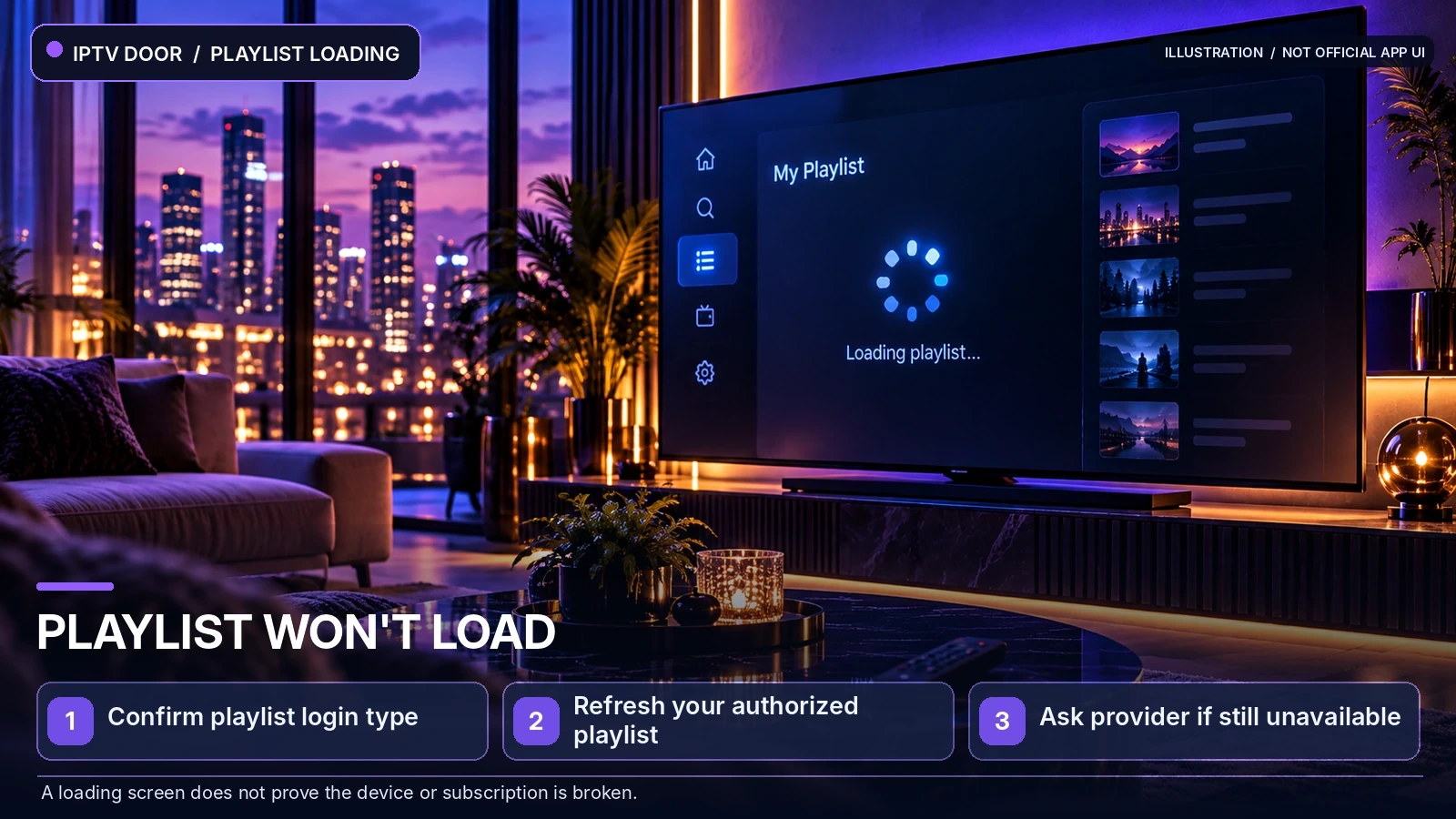
Sometimes the player accepts a profile but stays on a loading screen, returns an empty channel list or cannot refresh the playlist. Confirm which kind of source the player expects:
- Account-based login: an authorized server address and matching credentials.
- M3U playlist: a full, valid playlist URL supplied by your service, possibly with separate guide information.
Refresh the list using the option in your version of the player, then close and reopen the app. If you can safely test the same authorized account on another supported device, respect the service’s simultaneous-connection rules and stop the first stream before testing. If every device fails, contact your provider with the precise error.
Privacy note: avoid pasting private playlist links into unknown online validators; those links can sometimes contain account credentials.
4. Channels load but will not play: what to check
A populated channel list does not guarantee that every listed stream is available at that moment. Test two or three different channels you are authorized to watch and note whether the issue affects just one or all of them.
| What happens | What to investigate |
|---|---|
| Only one channel fails | That stream’s availability, source or video format |
| Every channel fails | Account status, network connection, player and connection limits |
| Works on phone, fails on TV | TV app version, supported playback formats and local network |
| Another device is already playing | The subscription’s simultaneous-stream allowance |
Connection count is not device count. Installing a player on two devices is different from watching two streams at the same time. See our IPTV Connections Guide for the difference between one, two and three simultaneous connections.
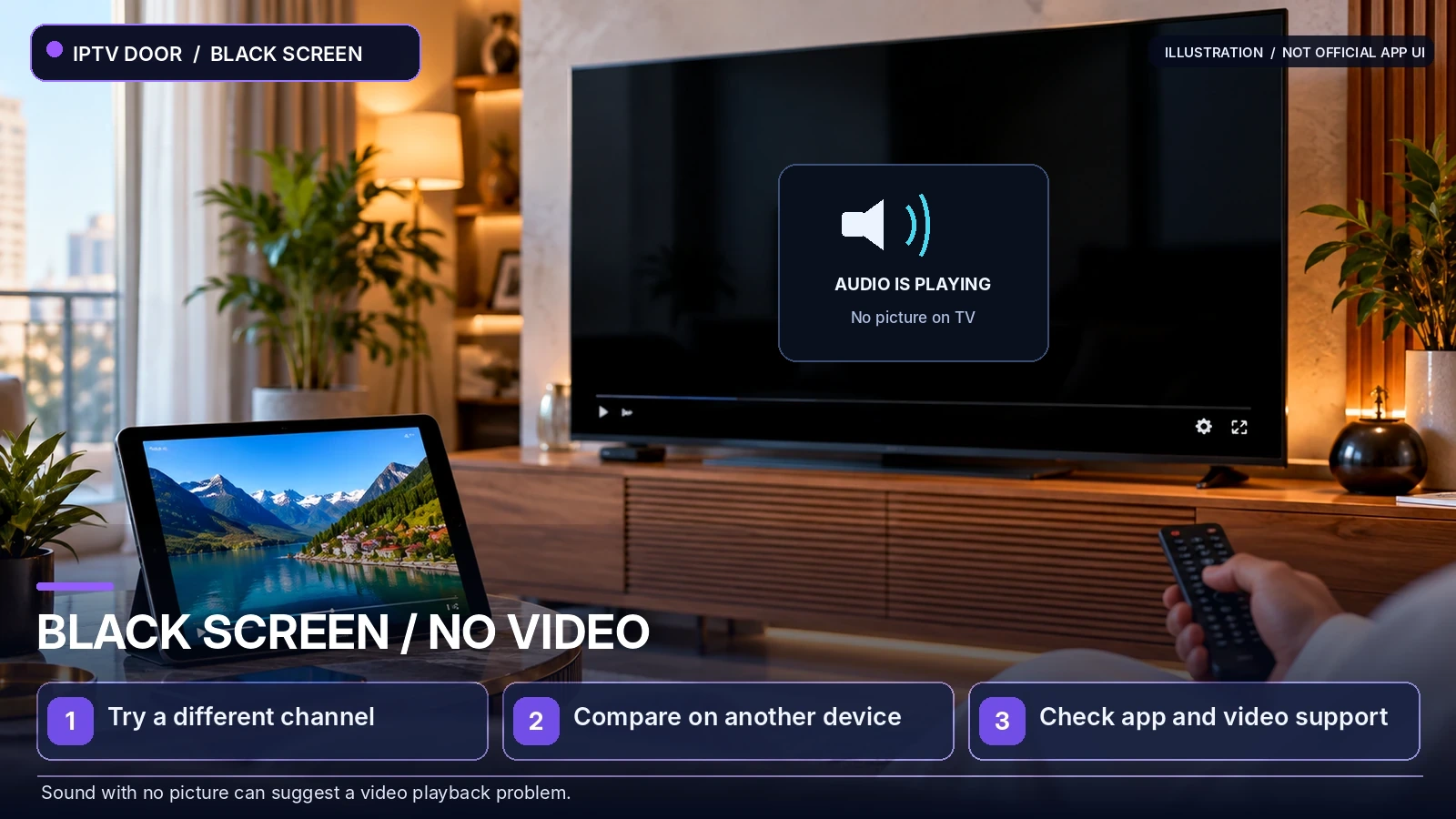
Black screen with sound: a different problem
If you can hear audio but the screen remains black, check whether the same stream works on another compatible device. Try an alternative authorized channel and install any supported player or operating-system updates. Where your specific player version provides a documented playback or decoder option, its compatibility settings may matter. An individual stream could also have an encoding or source issue.
Do not assume a black screen always requires a new subscription or a device reset.
5. Stop constant buffering with a controlled network test
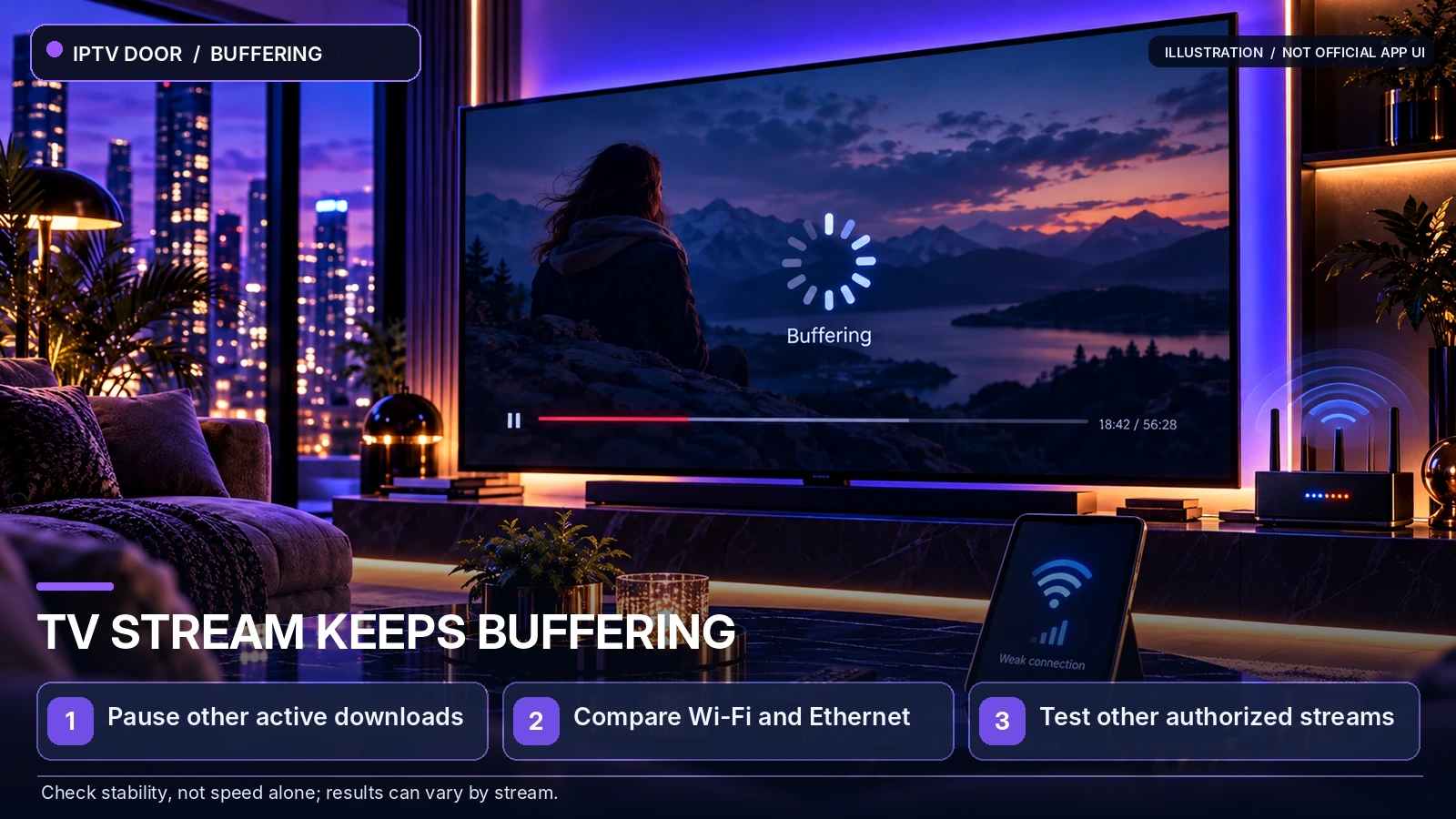
Buffering can happen when video data arrives inconsistently or when the device cannot process it quickly enough. Common causes include wireless interference, network congestion, temporary drops, stream-source problems and device limitations.
- Stop downloads and other high-bandwidth activity during your test.
- If possible, compare Wi-Fi against a wired Ethernet connection.
- On supported devices and routers, use a stronger 5 GHz or 6 GHz Wi-Fi connection where it offers better stability.
- Test a different authorized channel to isolate source-specific problems.
- Note whether problems occur at particular times and whether other apps are affected.
A speed-test result on its own does not prove that the connection is stable over time. More subscription connections also do not increase internet speed. For a systematic network checklist, use our IPTV Buffering Troubleshooting Guide.
6. IPTV Smarters Pro not working on Fire TV or Firestick
If the issue happens on a compatible Amazon Fire TV device, begin with steps that preserve the account details:
- Restart your Fire TV device and confirm other internet apps work.
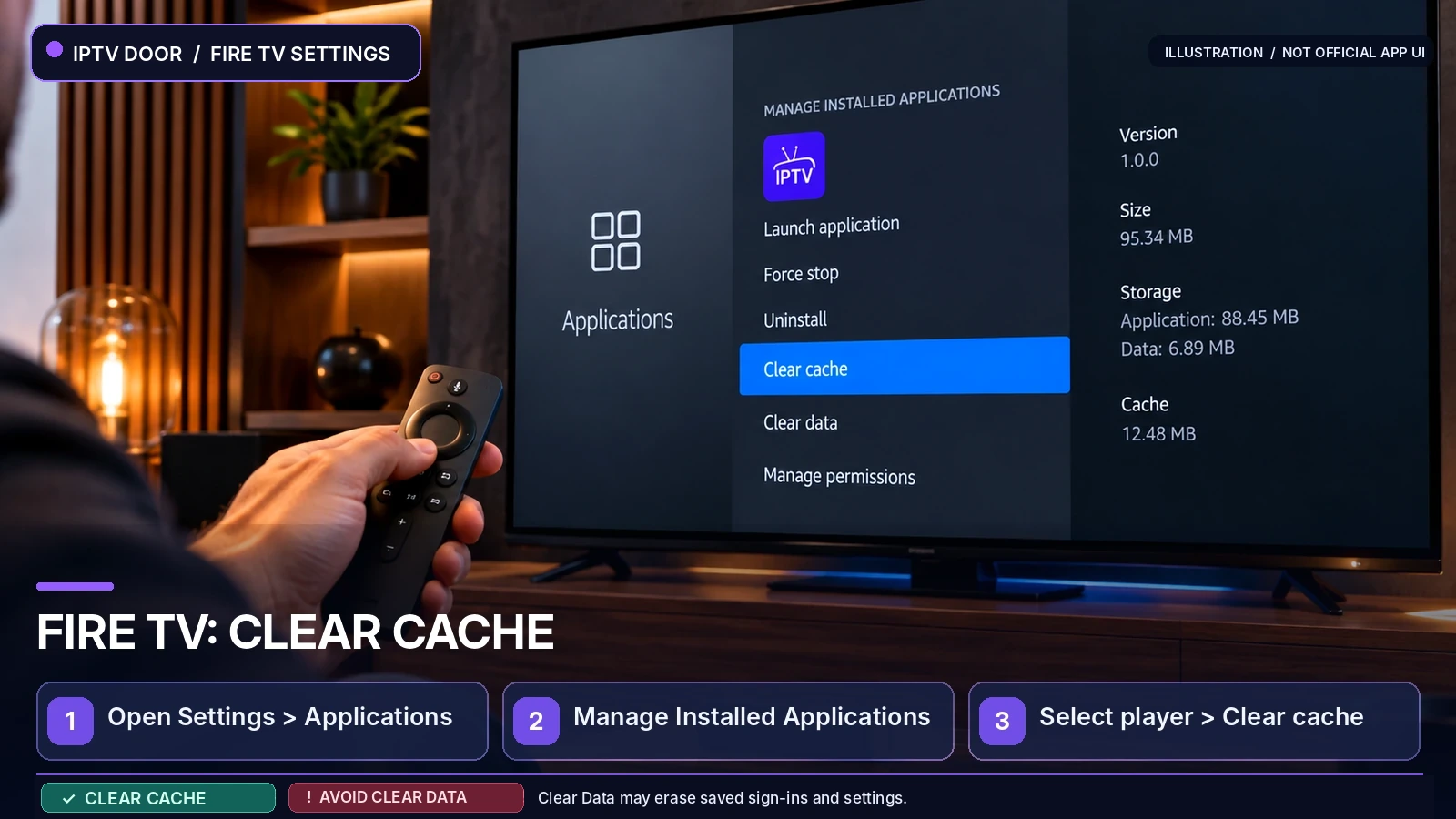
- Open Settings → Applications → Manage Installed Applications on devices where this menu is available.
- Select the affected app and use Force Stop, if available.
- Reopen the app and test again.
- If necessary, try Clear Cache rather than Clear Data.
- Check for a supported app or Fire TV software update.
Important: Clear Data or uninstalling can remove saved profiles and settings. Keep a secure copy of authorized sign-in details before taking either step. Exact menus depend on the Fire TV model and system version, and app availability varies by region and device.
If you still need to configure your device, our IPTV Setup Guide for Smart TV, Fire TV, Android TV and Apple TV covers the broader installation workflow.
7. App freezes, crashes or closes unexpectedly
A player that repeatedly freezes may be affected by its app version, device storage, operating-system compatibility or damaged temporary files. Try restarting the device, checking for supported updates, making sure sufficient storage is free and clearing temporary cache when your device offers that option.
Only attempt a reinstall after you can restore your saved login and playlist information. Avoid unofficial installation packages and unfamiliar download sites. If repeated crashes affect just one device, identify its exact model, operating system and app version before seeking support.
8. Fix IPTV Smarters Pro EPG or TV guide not working
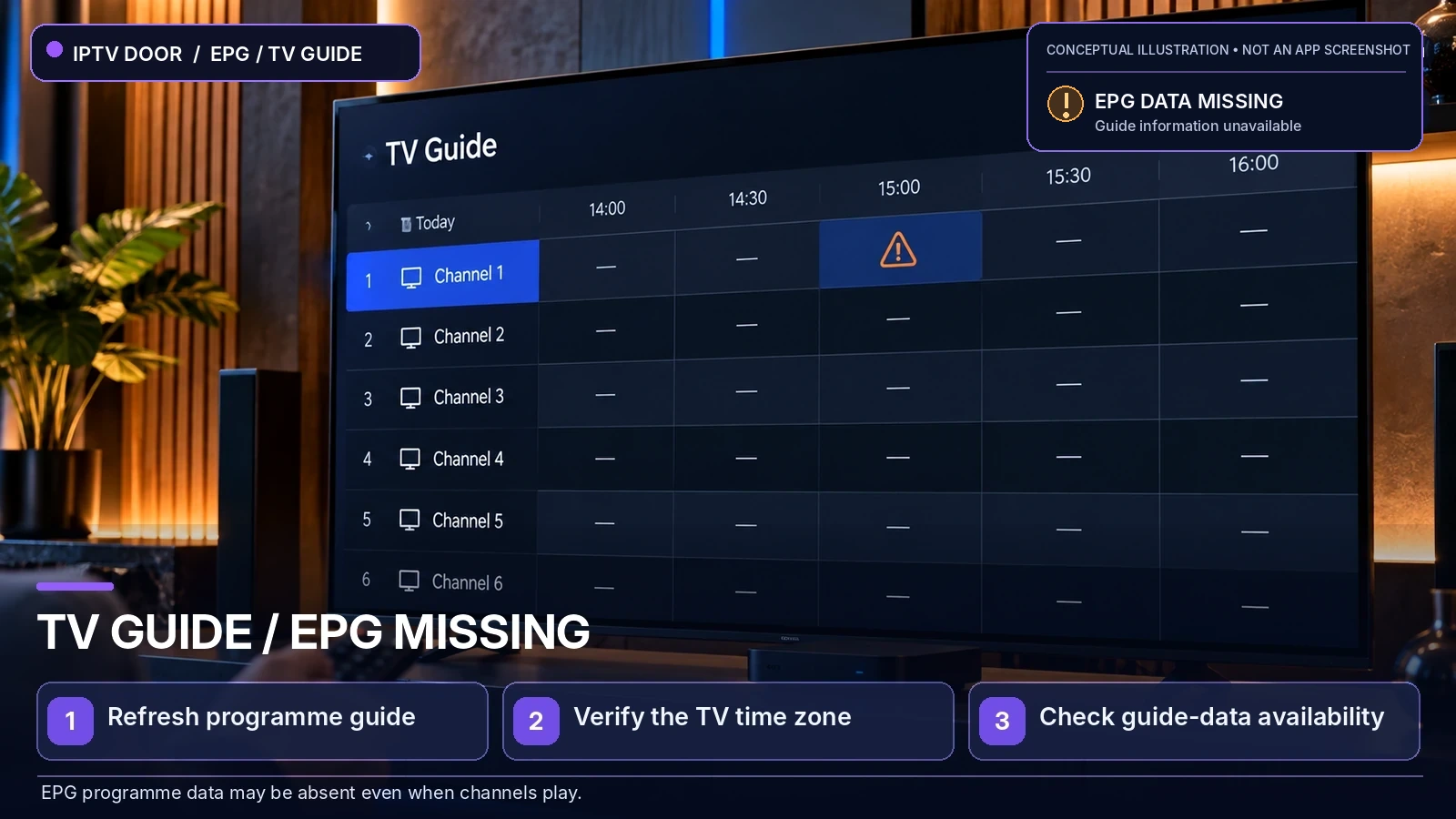
The Electronic Programme Guide (EPG) provides schedules and programme information, but it may use a different data source from channel playback. Therefore a channel can play while its guide is blank or outdated.
- Check whether the authorized provider offers guide data for the affected channel.
- Refresh guide data using your player’s supported option.
- Confirm the device’s date and time zone.
- If your setup requires an EPG URL, verify it against the provider’s instructions.
- For missing data on individual channels, ask the provider to check source availability or channel mapping.
Do not reinstall the app merely because one programme listing is missing. A guide-data source problem may not be fixed by resetting the player.
9. Test another device to narrow down the cause
If your account terms allow it, stop the first stream and try the same authorized content on another compatible device. A working stream on a phone but not on a television suggests looking at the TV player, software, supported formats and local network. Failure everywhere suggests checking account credentials, provider availability and wider network conditions.
These comparisons are clues, not definitive diagnoses. Read our IPTV Compatible Devices Guide for the differences between Smart TVs, Fire TV, Android TV, Apple TV, phones and computers.
10. When should you contact IPTV support?
If none of the safe checks resolve the problem, collect a short, useful technical report: device model, operating system, player version, precise error message, affected channels, whether other devices work, time and time zone, and the steps you already tried.
Never publish your subscription password, full private playlist URL or payment information. IPTV Door customers can reach the team through the IPTV Door Contact Page. If you’re considering a new plan, the IPTV Free Trial Checklist explains what to test before committing.
IPTV Smarters Pro troubleshooting FAQ
Why does IPTV Smarters Pro say “Invalid Details”?
It may be receiving an incorrect server address, username or password, or your account might not currently be authorized. Confirm the exact credentials and supported login method with your provider.
Why is my IPTV Smarters playlist stuck on loading?
Possible causes include a wrong playlist source or method, expired credentials, connection problems or an unavailable service. Refresh the playlist, restart the app and check the account before deleting anything.
Why can I hear sound but see a black screen?
That can indicate a video playback, decoding or individual stream issue. Check another authorized stream, the device’s compatibility and supported software updates.
Does clearing cache remove my IPTV account?
Clearing temporary cache usually differs from clearing app data, but behavior varies by platform. Clear Data and uninstalling may remove saved account profiles. Back up the information needed to sign in first.
Why does IPTV Smarters work on my phone but not on Fire TV?
Different devices can use different networks, player builds or video decoders. Compare the same authorized stream after checking the Fire TV connection, software and account connection limit.
Does IPTV Smarters Pro include TV channels?
IPTV Smarters Pro is a media player. A player and the separate authorized service or playlist supplying the streams are not the same thing.
Do I need more connections to stop buffering?
No. The number of connections controls simultaneous viewing according to the service’s rules; it does not guarantee a faster or more stable network.
Final checklist before resetting the app
- Internet access and network stability checked
- Correct server URL and login method confirmed
- Subscription and simultaneous-connection rules checked
- Multiple authorized channels tested
- Player and device compatibility considered
- Safe restart and cache steps tried
- Saved login details backed up before any destructive reset
The best troubleshooting approach is simple: identify the exact symptom, test the least disruptive explanation first, and preserve your settings until you understand the cause.
Once your devices and requirements are clear, you can compare IPTV Door subscription plans to find the option that fits your household.
