
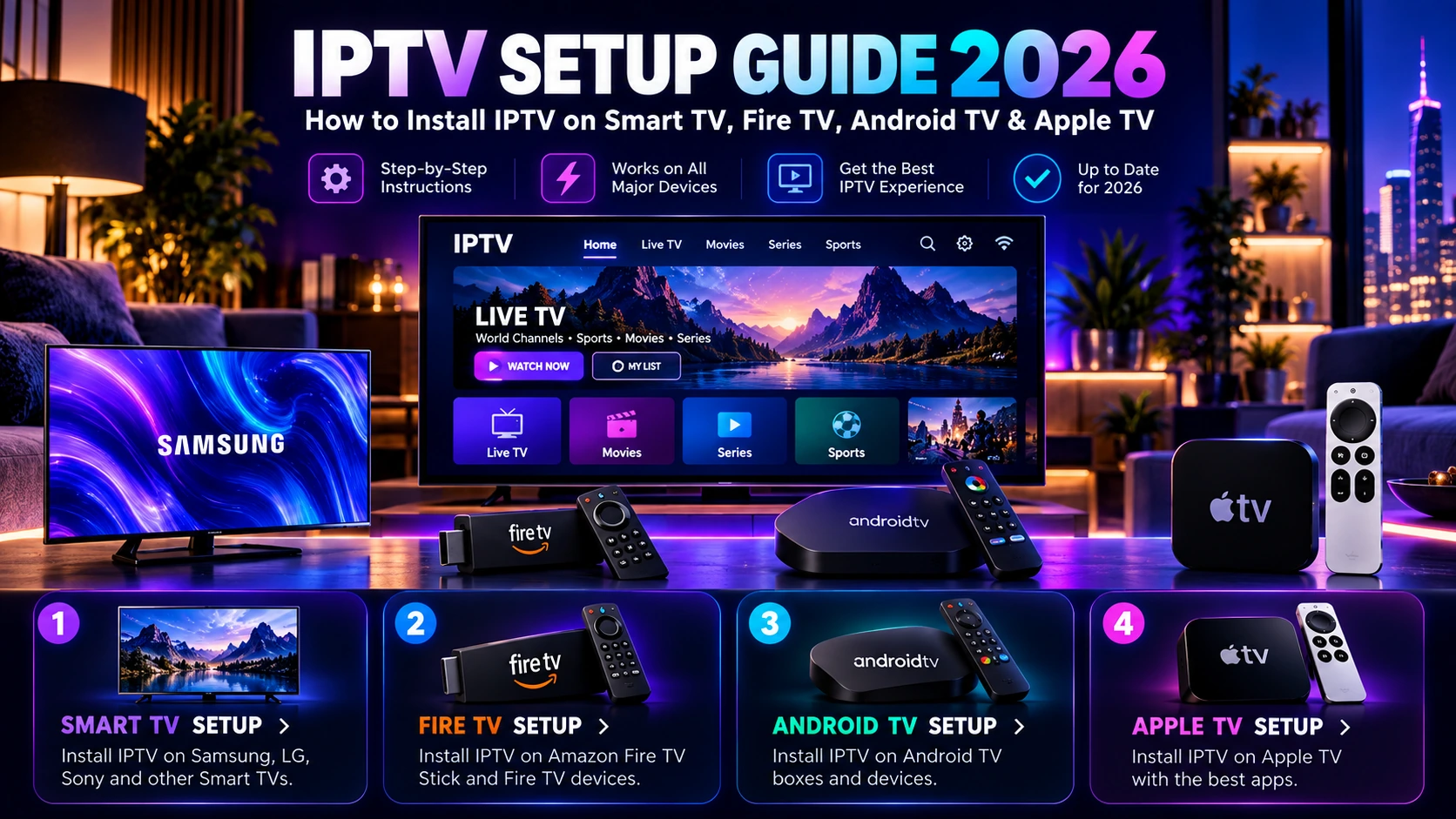
IPTV Setup Guide 2026: How to Install IPTV on Smart TV, Fire TV, Android TV & Apple TV
This IPTV setup guide walks you through a straightforward installation process once you know which device you will use, which player is compatible with that device, and which login method your service provides. The exact menus can vary by television model, operating-system version, region, and player app, so the safest approach is to confirm the player first and then follow the setup path for your device.
This guide explains the practical setup process for Smart TVs, Android TV and Google TV, Amazon Fire TV, and Apple TV. It also covers the checks that matter before installation, what to do when an app is unavailable, how to test your connection, and how to avoid the most common setup mistakes.
Important: use IPTV services and content you are legally entitled to access in your location. This guide is about device setup and compatibility, not bypassing platform, regional, or content restrictions.
IPTV setup at a glance
| Device | Typical setup path | What to confirm first |
|---|---|---|
| Android TV / Google TV | Install a compatible player from the device app store | Player availability and login format |
| Amazon Fire TV | Install a compatible app available for the device and region | App availability, storage, network quality |
| Apple TV | Install a compatible tvOS player from the App Store | tvOS support and service login method |
| Samsung Smart TV | Install a compatible app from the TV Apps area when available | TV model, region, and app availability |
| LG Smart TV | Install a compatible app from the Apps / Content Store area | webOS version, region, and app availability |
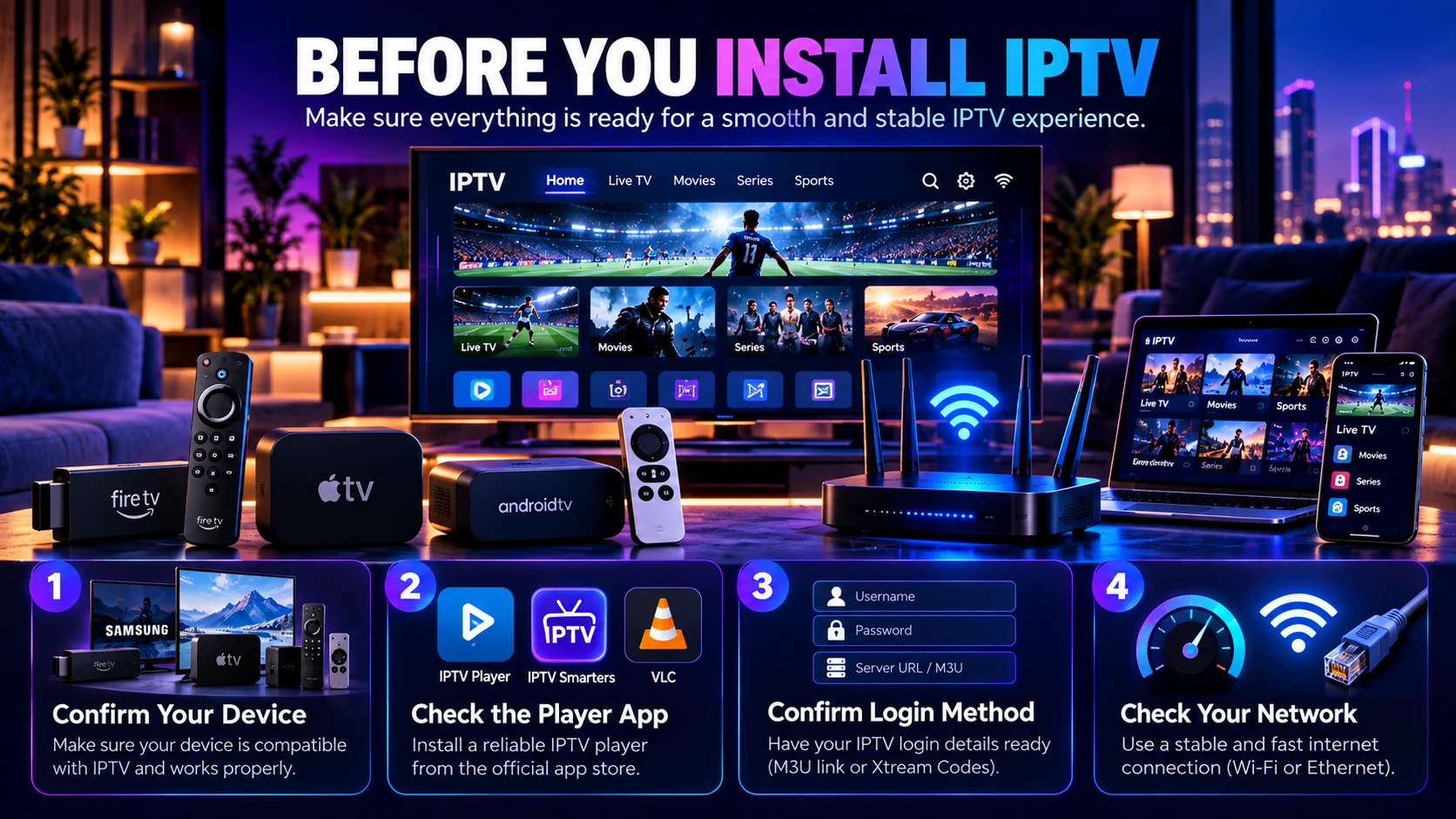
Before you install IPTV on any device
Do these checks before entering account details or changing settings. They prevent most setup problems and make troubleshooting much faster.
- Confirm the exact device model. Two televisions from the same brand can use different software versions or app stores.
- Confirm the player app. Search for the exact player on the device you plan to use. Do not assume an app available on a phone is also available on a television.
- Confirm the login method. Your service may provide a username and password with a server address, a playlist URL, or another supported login method. The player must support the format you receive.
- Check your network. A stable Wi-Fi or Ethernet connection matters more than a high advertised speed that drops or fluctuates.
- Keep the device updated. Install current system updates before troubleshooting an app that will not install or open.
If you are still choosing hardware, start with our IPTV Compatible Devices Guide and Best IPTV Devices in 2026.
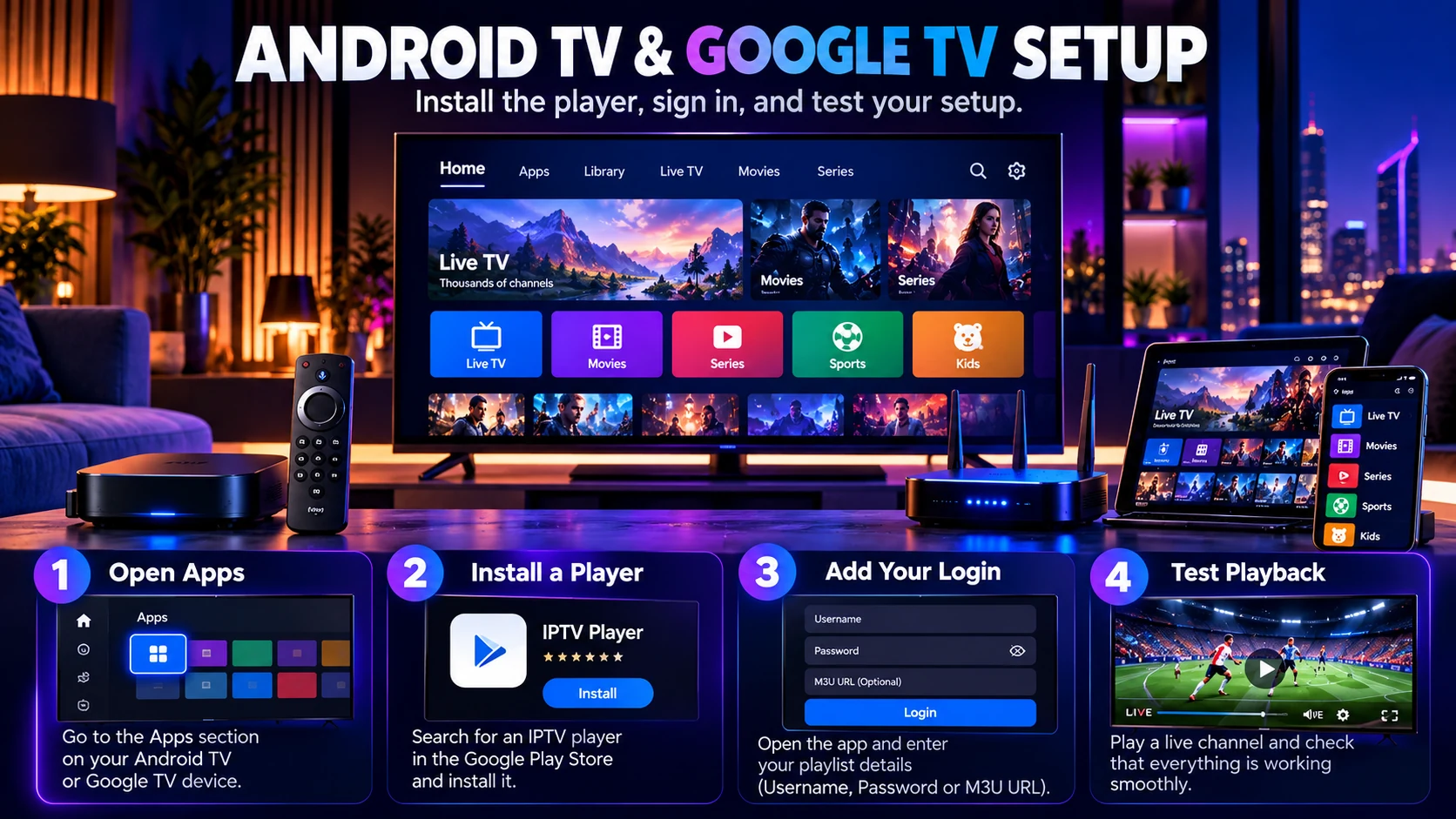
How to set up IPTV on Android TV and Google TV
Android TV and Google TV are popular because they support downloadable apps and are available on both televisions and external streaming devices. On Google TV, apps can be searched and installed from the Apps area or by using search on the home screen.
- Connect the TV or streaming device to the internet.
- Open the device's Apps area or app store.
- Search for the compatible player you have chosen.
- Install and open the player.
- Select the login method supported by both the player and your service.
- Enter the account information carefully.
- Let the app finish loading the available content.
- Test live playback, navigation, audio, and any movie or series sections included with your service.
If the app does not appear in search, first verify the exact device model, country/region setting, and software version. App availability can differ across devices even when both use an Android-based television platform.
Android TV and Google TV setup tips
- Keep enough free storage for the player and future updates.
- Move the player to a convenient position on the home screen if the device allows it.
- Test both Wi-Fi and Ethernet when troubleshooting unstable playback.
- If the television is old or slow, an external streaming device may provide a smoother app experience.
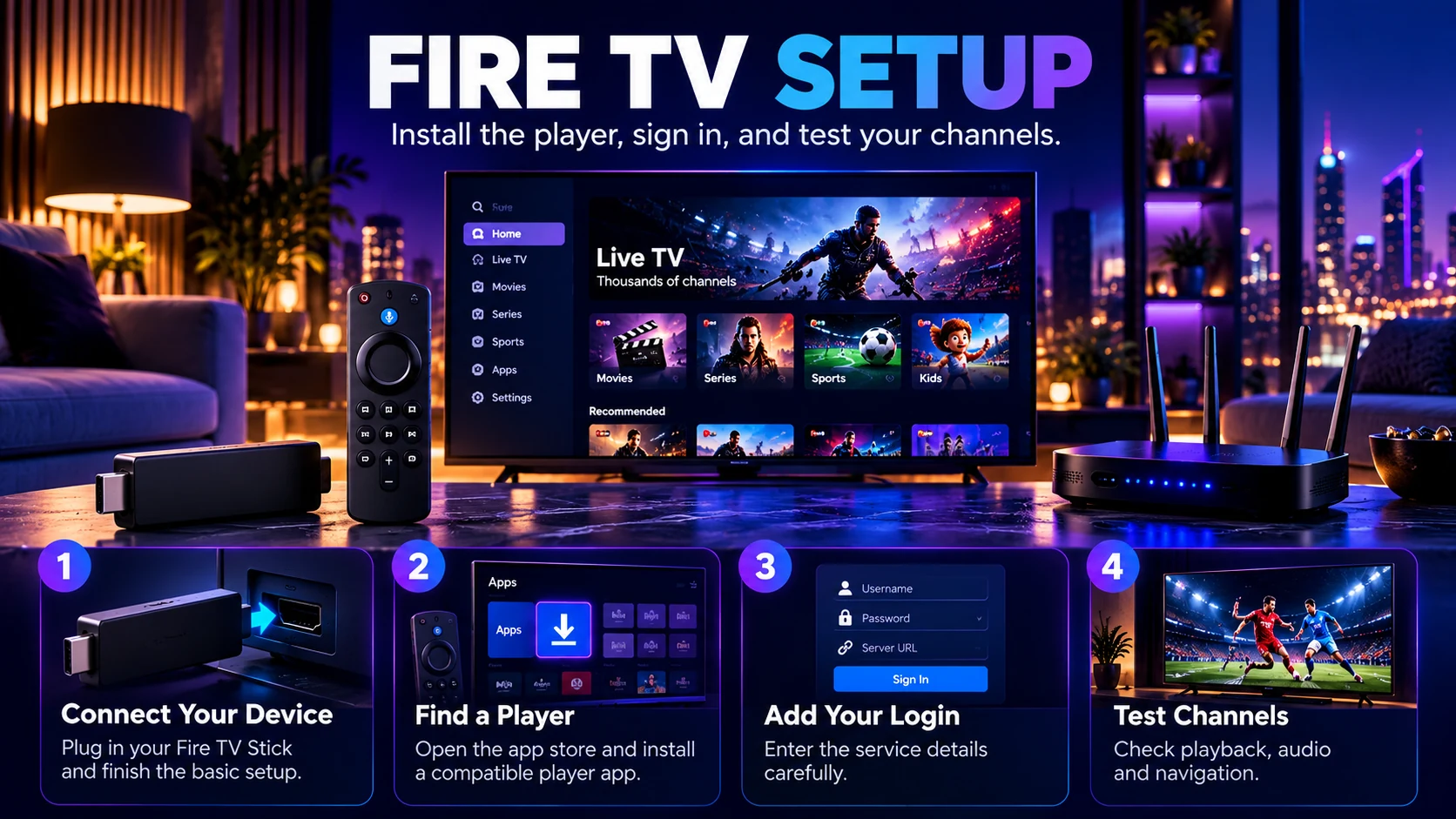
How to set up IPTV on Amazon Fire TV
Fire TV devices can be a practical option when a television has limited built-in app support. The normal setup is to use an app that is available for your Fire TV device and supported by your IPTV service.
- Connect the Fire TV device to your television and complete the normal Fire TV setup.
- Connect it to Wi-Fi and sign in to the account required for the device's app store.
- Search for your chosen compatible IPTV player.
- Install and open the player.
- Choose the correct login method.
- Enter the service details exactly as provided.
- Test several channels and content sections before deciding the setup is complete.
Do not install random applications from unknown sources simply because a tutorial tells you to. If the player you need is not available through the normal app environment, confirm the safest supported alternative with the app developer or your service provider rather than guessing.
If Fire TV playback buffers
Test the same stream on another device on the same network, then compare the Fire TV device on a stronger Wi-Fi signal or wired connection when possible. Our IPTV Buffering Troubleshooting Guide gives the full diagnostic order.
How to set up IPTV on Apple TV
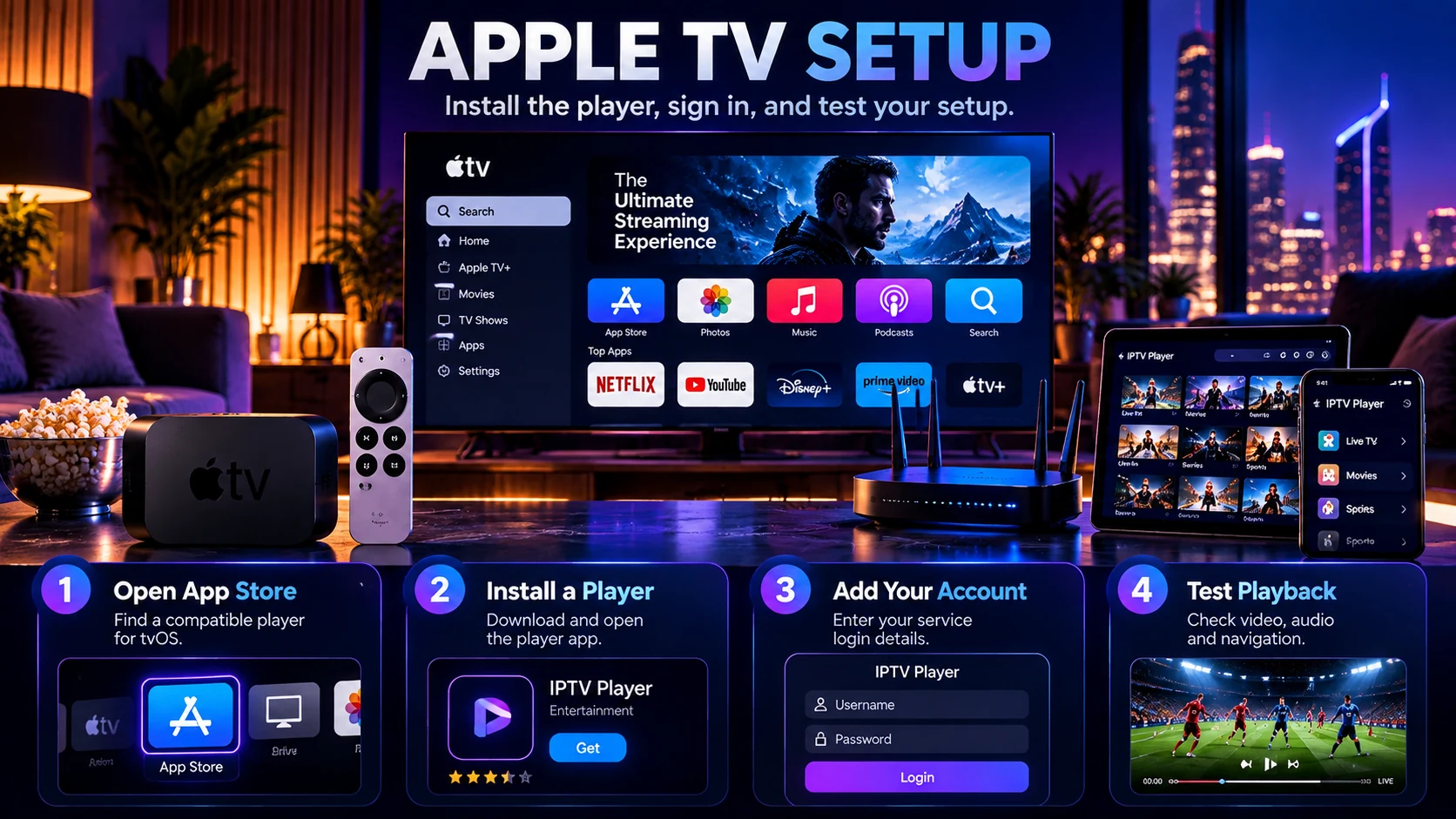
Apple TV 4K and Apple TV HD support downloadable apps through the App Store. The important step is confirming that the player you want has a tvOS version and supports the login method supplied by your IPTV service.
- Connect Apple TV to the internet and complete the normal Apple TV setup.
- Open the App Store.
- Search for the compatible player you plan to use.
- Install and open the player.
- Select the appropriate login option.
- Enter the account information provided by your service.
- Test playback, audio, remote-control navigation, and content loading.
An iPhone or iPad version of an app does not automatically mean the same app is available on Apple TV, so verify the tvOS version before you subscribe to a long plan.
How to set up IPTV on Samsung Smart TV
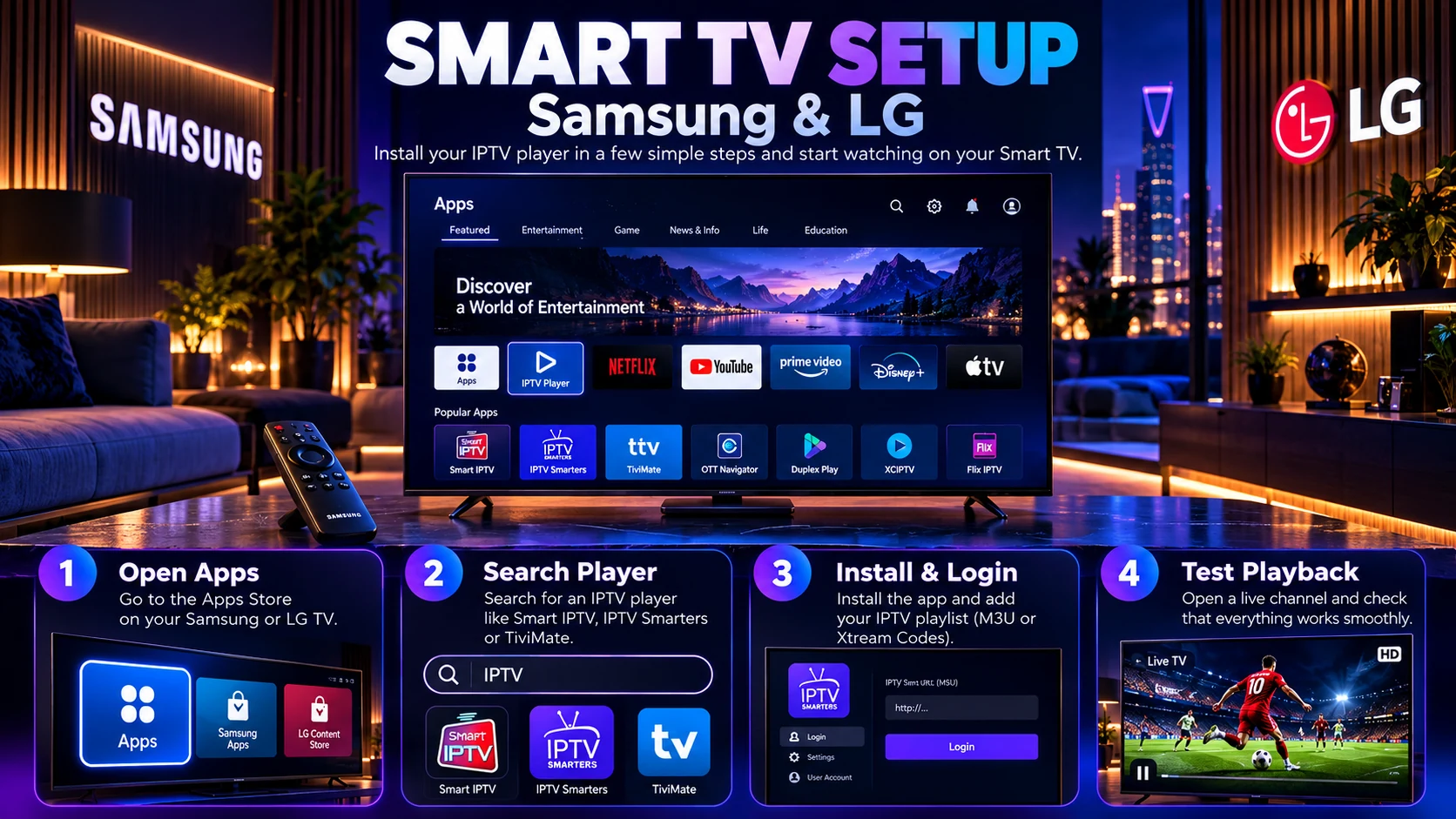
On Samsung Smart TVs, apps are installed through the TV's Apps area. Current Samsung guidance uses the Home button, Apps, search, and Install flow, although exact menu names can vary by model and software version.
- Connect the television to the internet.
- Press Home on the remote and open Apps.
- Search for the compatible IPTV player.
- Select the app and install it.
- Open the player and choose the correct login method.
- Enter your IPTV service details.
- Test playback and remote-control navigation.
If the app is unavailable, do not assume the television is defective. Availability can vary by model, region, and software version. In that situation, an external Fire TV, Android TV, Google TV, or Apple TV device may provide more app choices.
How to set up IPTV on LG Smart TV
LG Smart TVs use webOS. Compatible apps are installed from the Apps or Content Store area, depending on the webOS version and television model. LG also notes that app availability can depend on the country/region, TV model, account status, software version, and available storage.
- Connect the television to the internet.
- Open Home and go to Apps or the Content Store.
- Use search to find the compatible player.
- Select Install.
- Open the player after installation.
- Choose the correct service login method and enter the account details.
- Test live channels, navigation, and any additional content sections you use.
If the app cannot be found, verify the television model, webOS version, region setting, available storage, and LG account status before changing anything else.
What login details do you need?
The exact details depend on the player and service. Common setups may use a username, password, and server address, or a playlist URL. Some players support multiple login formats, while others support only one.
Before installation, make sure you know which information belongs in which field. A correct username with the wrong server address will still fail. Copy the details carefully and avoid adding extra spaces before or after a value.
If a login fails on one device, test the same account on another compatible device before assuming the subscription is inactive. This helps separate an account problem from an app or device problem.
Wi-Fi or Ethernet for IPTV setup?
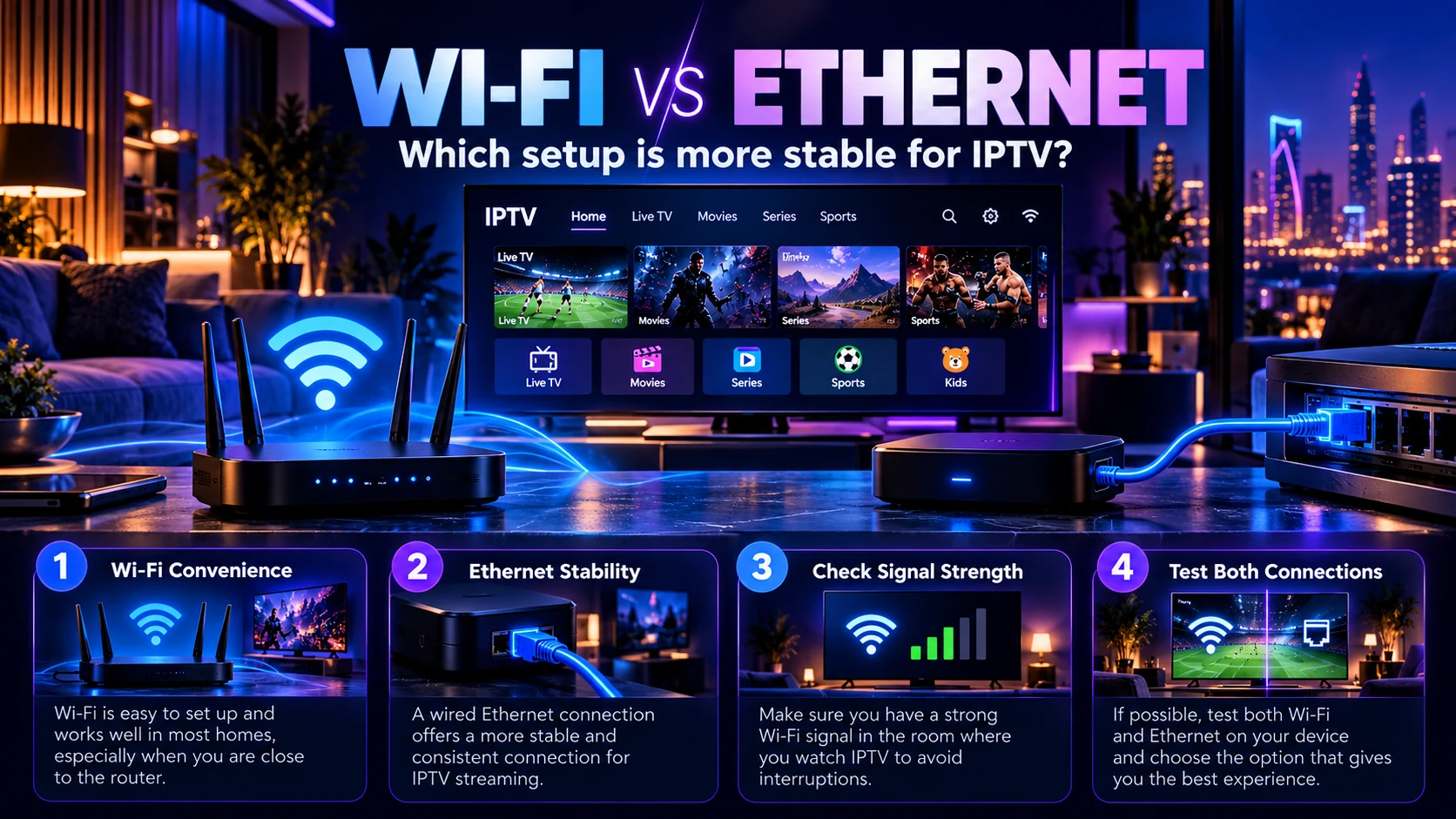
Both can work. Ethernet can offer a more consistent wired connection when the router is close enough to the television or streaming device. Wi-Fi is more convenient but can be affected by walls, distance, interference, and other devices using the network.
For bandwidth planning, use our IPTV Internet Speed Guide. If playback is unstable, compare the same device on Wi-Fi and Ethernet when possible instead of changing several settings at once.
How to test the setup before choosing a long subscription
A successful login is only the first test. The real question is whether the exact device, player, network, and viewing routine work well together.
- Open several channels you actually plan to watch.
- Test channel switching and remote-control navigation.
- Check picture and audio stability.
- Test movies and series if they are part of the service you are evaluating.
- Test during the time of day you normally watch.
- Confirm the app stays logged in after closing and reopening it.
- Check support responsiveness if setup assistance matters to you.
- Confirm the number of simultaneous streams your household needs.
Use our IPTV Free Trial Checklist for a more complete test sequence.
One device vs multiple simultaneous connections
Installing a player on several devices is not the same as having permission to stream on all of them at the same time. Your subscription's connection limit determines how many simultaneous streams can run.
If two or three people regularly watch at the same time, read our 1 vs 2 vs 3 IPTV Connections Guide before choosing a plan.
Common IPTV setup problems and the fastest checks
| Problem | Check first |
|---|---|
| App not found | Device model, operating-system version, region, app-store availability |
| Login rejected | Username, password, server/playlist address, extra spaces, service status |
| Channels load slowly | Wi-Fi signal, Ethernet test, other devices using the network |
| App closes or freezes | Device storage, system updates, app update, restart |
| Works on phone but not TV | Different player version, TV app support, TV network position |
| Only one screen works | Subscription connection limit |
Change one variable at a time. If you change the player, network, device, and login details together, you will not know which change solved the problem.
Should you use the Smart TV app or an external streaming device?
If your television already supports the player you need and runs it smoothly, the built-in app can keep the setup simple. An external device can be useful when the TV is older, has limited app support, or feels slow.
External devices also make future upgrades easier because you can replace the streaming box without replacing the television. Compare the options in our Best IPTV Devices in 2026 guide.
IPTV setup FAQ
Do I need a separate IPTV box?
Not always. If your Smart TV supports a compatible player and performs well, you may not need an external device. A streaming box is useful when the TV has limited app support or slow software.
Can I use the same IPTV account on more than one device?
You may be able to install a compatible player on multiple devices, but simultaneous viewing depends on the connection limit of your subscription.
Why can I not find the IPTV player on my TV?
App availability can vary by television model, software version, region, and app store. Confirm the exact device and player before assuming the app should be available.
Is Wi-Fi enough for IPTV?
It can be when the connection is stable and the device has a strong signal. Ethernet can be useful when you need a more consistent connection or when Wi-Fi is affected by distance or interference.
What should I do if the service works on my phone but not my television?
Check whether the television uses a different player version, whether the login method is supported, and whether the TV's network connection is stable. Testing another compatible player or device can help identify where the problem is.
Should I test before buying a long plan?
Yes. Testing the exact device, app, network, channels, and connection count you expect to use gives you much better information than testing only one stream for a few minutes.
Final setup checklist
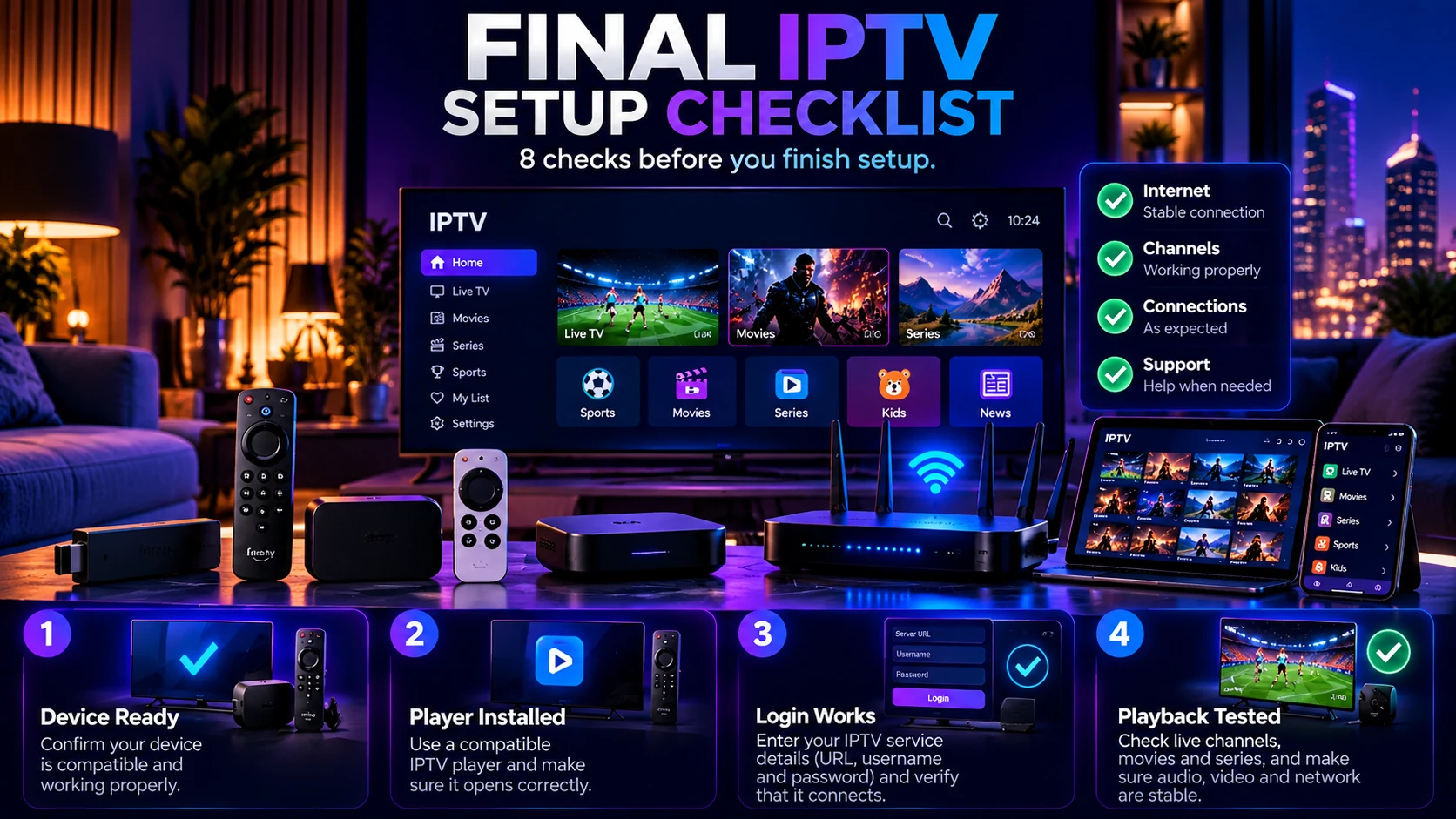
- Confirm the exact device.
- Confirm a compatible player is available.
- Confirm the service login format.
- Install the player from the normal supported app environment.
- Enter the login details carefully.
- Test your normal Wi-Fi or Ethernet connection.
- Test the channels and content you actually use.
- Confirm simultaneous connection needs.
- Only then choose the subscription duration that fits your household.
After your setup is confirmed, you can review the current IPTV channels and content list, compare IPTV Door plans, or contact IPTV Door support if you are unsure which device or setup method fits your equipment.
