
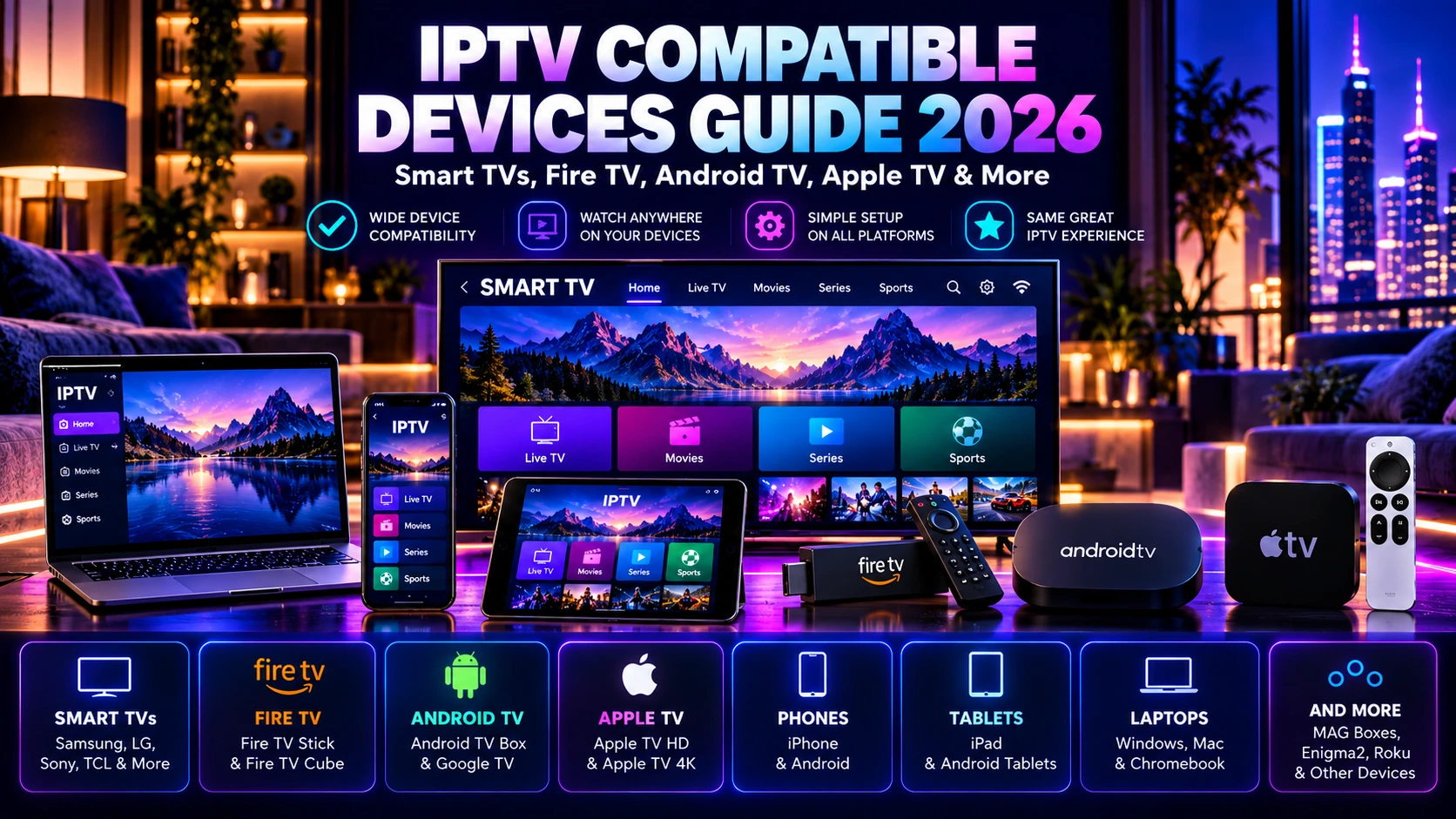
IPTV Compatible Devices Guide 2026: Smart TVs, Fire TV, Android TV, Apple TV & More
IPTV Compatible Devices Guide 2026: Smart TVs, Fire TV, Android TV, Apple TV & More
IPTV compatible devices can include Smart TVs, Android TV and Google TV devices, Fire TV, Apple TV, phones, tablets, Windows PCs and Macs when a compatible player and login method are available. Choosing an IPTV subscription is only part of the setup: the device you plan to use, its operating system, player apps and home network all affect how easy the service is to install and use.
This guide explains the main device categories commonly used with IPTV services and what to check before you subscribe. Compatibility can vary by device model, operating-system version, app availability and service setup, so always confirm the exact player and login method you will use. For a complete comparison beyond devices, use our guide to choosing an IPTV subscription.
Important: use IPTV services and content you are legally entitled to access in your location. This guide focuses on device compatibility and setup, not on bypassing platform or content restrictions.
IPTV-compatible devices at a glance
| Device type | Typical setup | Best for |
|---|---|---|
| Android TV / Google TV | Install a compatible player app from the TV app store when available | Living-room TVs and streaming boxes |
| Amazon Fire TV | Use a compatible app available for the device and supported by your service | Affordable TV streaming setup |
| Apple TV | Install a compatible tvOS player from the App Store when available | Apple-focused households |
| Samsung Smart TV | Install an available compatible app from the TV Apps section | Direct TV use without an external box |
| LG Smart TV | Use a compatible app available for the TV model and webOS version | Direct TV use |
| Android phone / tablet | Install a compatible player app | Portable viewing and setup testing |
| iPhone / iPad | Use an available compatible iOS or iPadOS player | Portable viewing in Apple ecosystems |
| Windows / Mac | Use a compatible desktop player or supported web-based option | Desk viewing and troubleshooting |
What does “IPTV compatible” actually mean?
A device is not automatically compatible just because it can connect to the internet. In practice, IPTV compatibility usually depends on four things:
- The operating system: Android TV, Google TV, Fire OS, tvOS, Tizen, webOS, Android, iOS, Windows or macOS.
- The available player: the device must have a player or supported method that can use the login format provided by the service.
- The device performance: older hardware may feel slower when opening apps, changing channels or decoding higher-resolution streams.
- The network connection: Wi-Fi quality, Ethernet availability and overall internet stability can affect playback.
Because app availability can change by region, device model and software version, confirm the exact player on the device you intend to use before purchasing a long subscription.
Android TV and Google TV
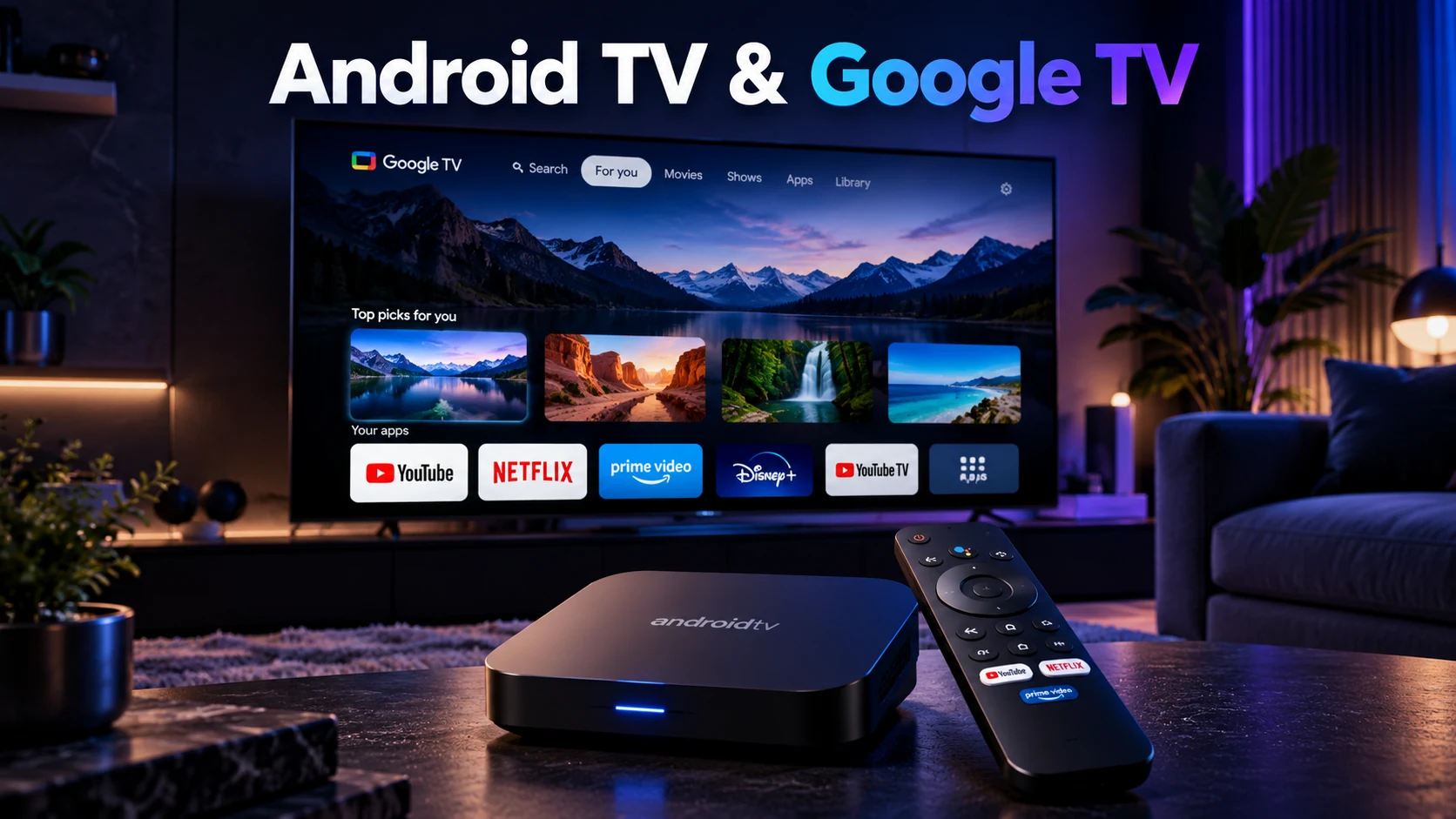
Android TV and Google TV are common choices because they support downloadable apps and are available across televisions and external streaming devices. Many users prefer this category because app installation and updates are handled through the television’s app environment.
Before choosing a player, check whether it appears in the app store on your exact device. Two televisions that both use an Android-based platform can still differ in hardware, software version or available apps.
For a smoother experience, check:
- whether the app installs directly from the device store;
- whether the remote-control interface is comfortable to use;
- whether the device has enough storage for the app and updates;
- whether Wi-Fi reception is strong in the room where the TV is used;
- whether Ethernet is available if you prefer a wired connection.
Amazon Fire TV devices
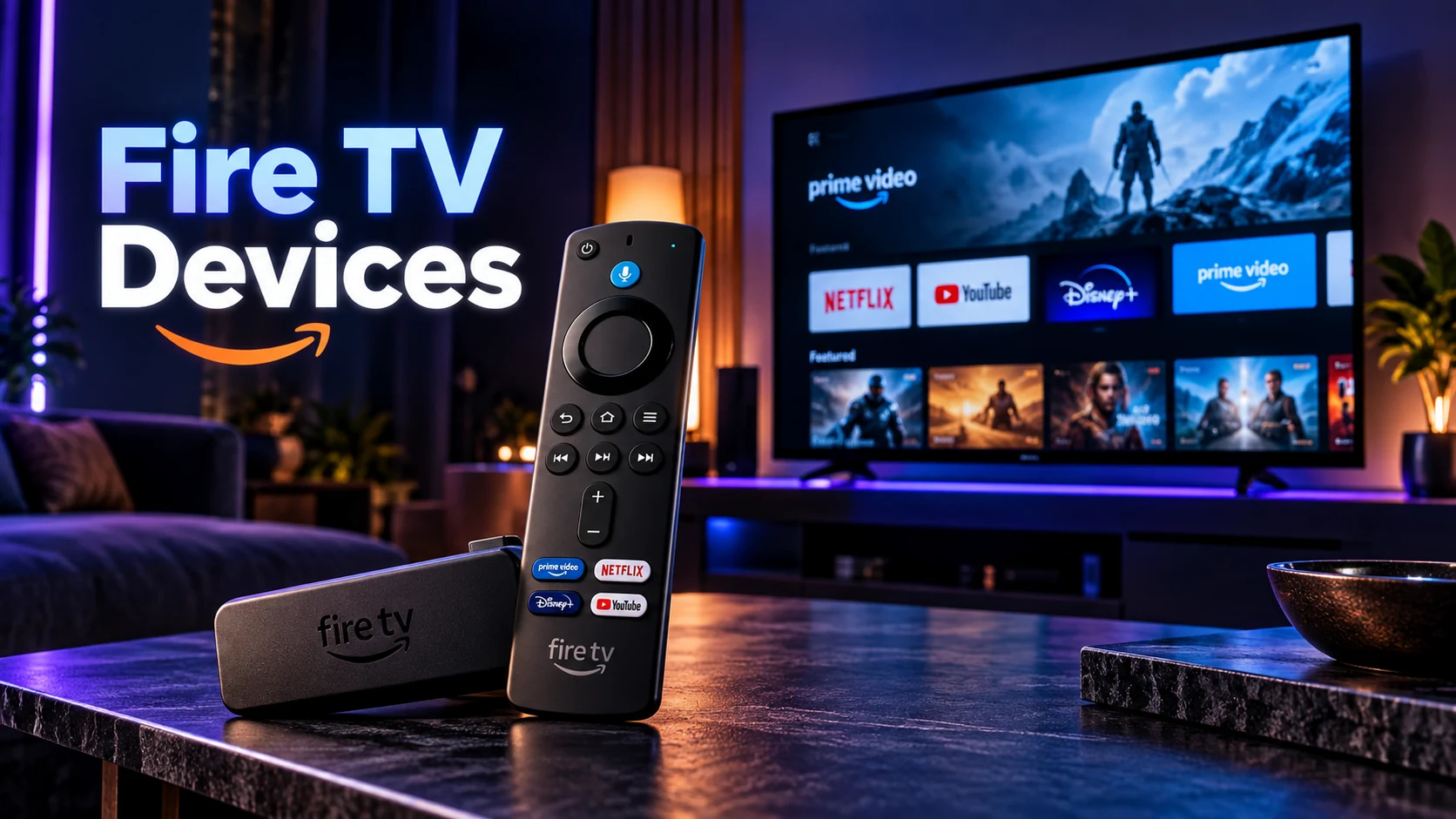
Fire TV devices are another popular way to turn a television into a streaming setup. Compatibility depends on the player you plan to use and whether that app is available for your device and region.
A Fire TV Stick can be practical when the television itself has limited app support or an older smart-TV platform. It can also keep the IPTV setup separate from the television’s built-in software.
Before purchasing, check the specific Fire TV model, available storage, app availability and your Wi-Fi quality near the television.
Apple TV
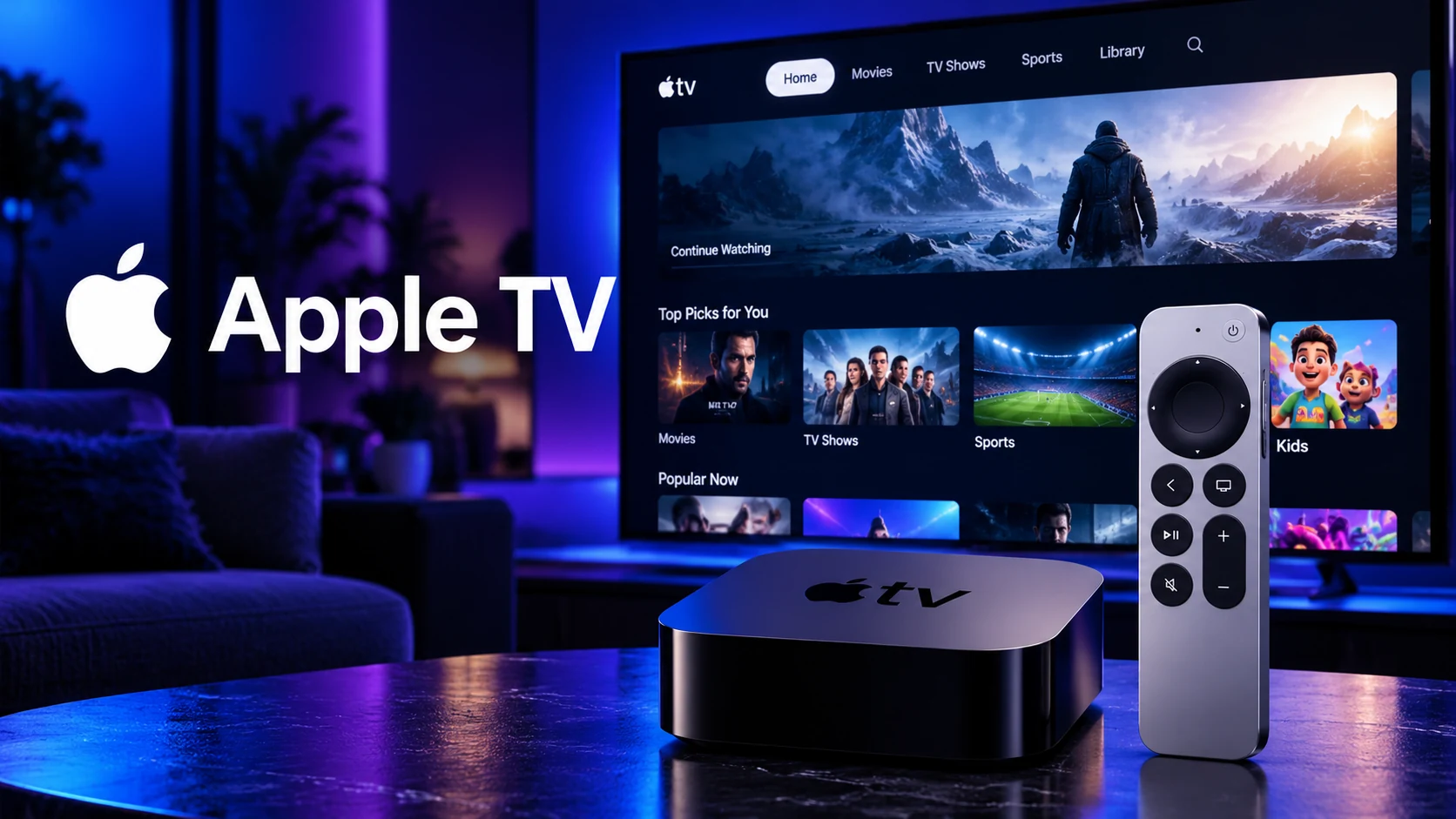
Apple TV can work well for households already using Apple devices. Apple TV 4K and Apple TV HD support downloadable apps from the App Store, but the player you want must be available for tvOS and compatible with your IPTV service.
Do not assume that an iPhone app automatically has an Apple TV version. Search the Apple TV App Store for the exact player you plan to use and confirm that it supports the login method supplied by your service.
Apple TV can be a good fit when you want a polished remote-control interface and your household already uses the Apple ecosystem.
Samsung Smart TV
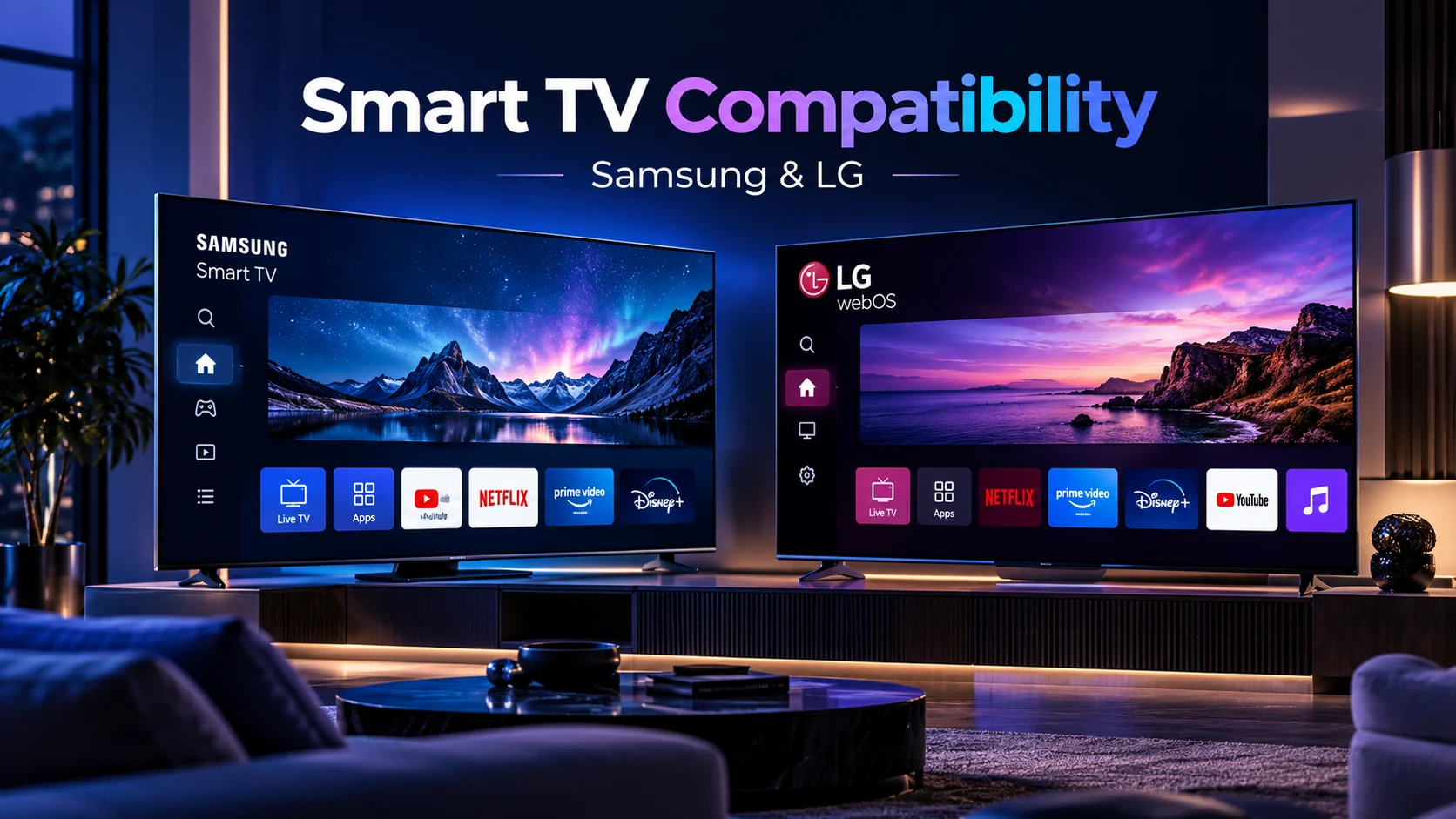
Many Samsung Smart TVs allow apps to be installed directly from the television’s Apps section. This can be convenient because you may not need an external streaming box.
However, app availability can vary between Samsung TV generations, regions and software versions. If a specific player is essential, search for it on the exact television before you subscribe.
Older Smart TVs may have fewer available apps or slower navigation than a newer external streaming device. In that case, adding a compatible streaming box can sometimes be simpler than replacing the television.
LG Smart TV
LG Smart TVs use webOS, and compatible player availability depends on the television model, webOS version and region. As with Samsung TVs, the safest approach is to search the TV app store for the exact player you intend to use.
If the player you need is not available on an older television, an external Android TV, Google TV, Fire TV or Apple TV device may give you more app choices.
Android phones and tablets
Android phones and tablets are useful for testing an IPTV account because setup is usually quick and the device is easy to keep near you while troubleshooting. They are also practical for portable viewing.
But a successful phone test does not guarantee that the experience on your main television will be identical. A TV uses a different screen size, remote-control interface, Wi-Fi position and sometimes a different version of the player.
If your main device will be a television, use the phone only as an additional test and verify the TV before choosing a long-term plan.
iPhone and iPad
iPhone and iPad can also be used with compatible IPTV players available for iOS or iPadOS. Check the App Store for the exact player and confirm that it supports your service’s login method.
Portable devices are useful for testing account credentials and basic playback, but they should not replace a real-world test on the screen you expect to use most often.
Windows and Mac computers
A Windows PC or Mac can be helpful for desk viewing, account testing and troubleshooting. Depending on the service, you may use a compatible desktop player or another supported method.
Computers can be especially useful when you need to compare network performance, test a wired connection or confirm whether a playback issue is limited to one television or app.
Which device is best for IPTV?
There is no single best device for every household. The best choice is the device that supports the player you need, is easy for you to control and performs reliably on your home network. For a direct comparison of Smart TV, Fire TV, Android TV, Google TV and Apple TV, see our Best IPTV Devices in 2026 guide.
| Your priority | Device category to consider |
|---|---|
| Use the TV without another box | A compatible Samsung, LG, Android TV or Google TV television |
| More app flexibility on an older TV | Android TV / Google TV or Fire TV device |
| Apple-focused household | Apple TV |
| Portable viewing | Android phone/tablet or iPhone/iPad |
| Testing and troubleshooting | Phone, tablet, Windows PC or Mac |
Should you use a Smart TV app or an external streaming device?
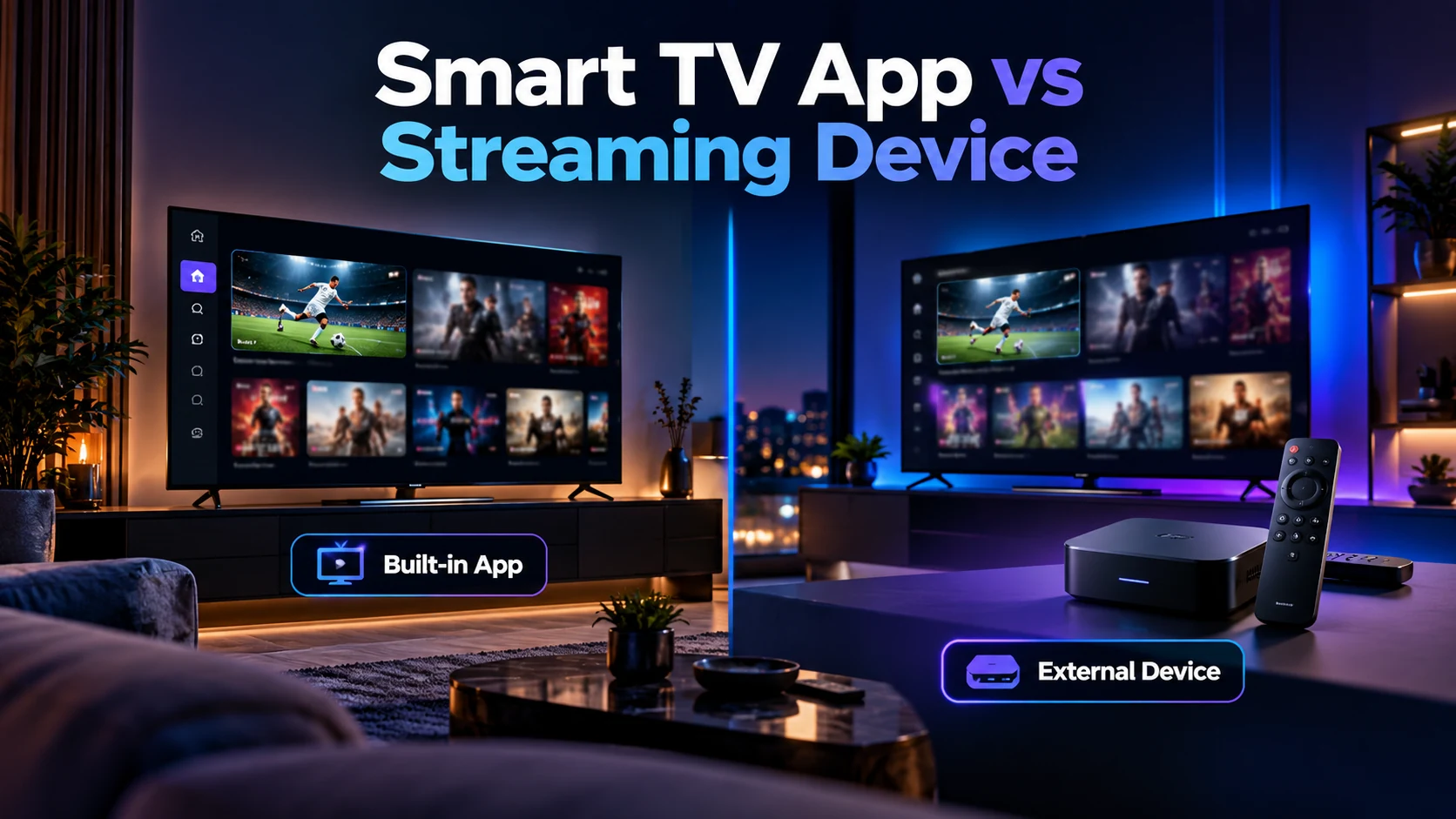
A built-in Smart TV app keeps the setup simple, but an external streaming device can be useful when the TV is older, has limited app support or feels slow.
An external device can also make future upgrades easier because you can replace the streaming device without changing the television. On the other hand, if your TV already runs the player you need smoothly, adding extra hardware may not provide much benefit.
Wi-Fi vs Ethernet for IPTV
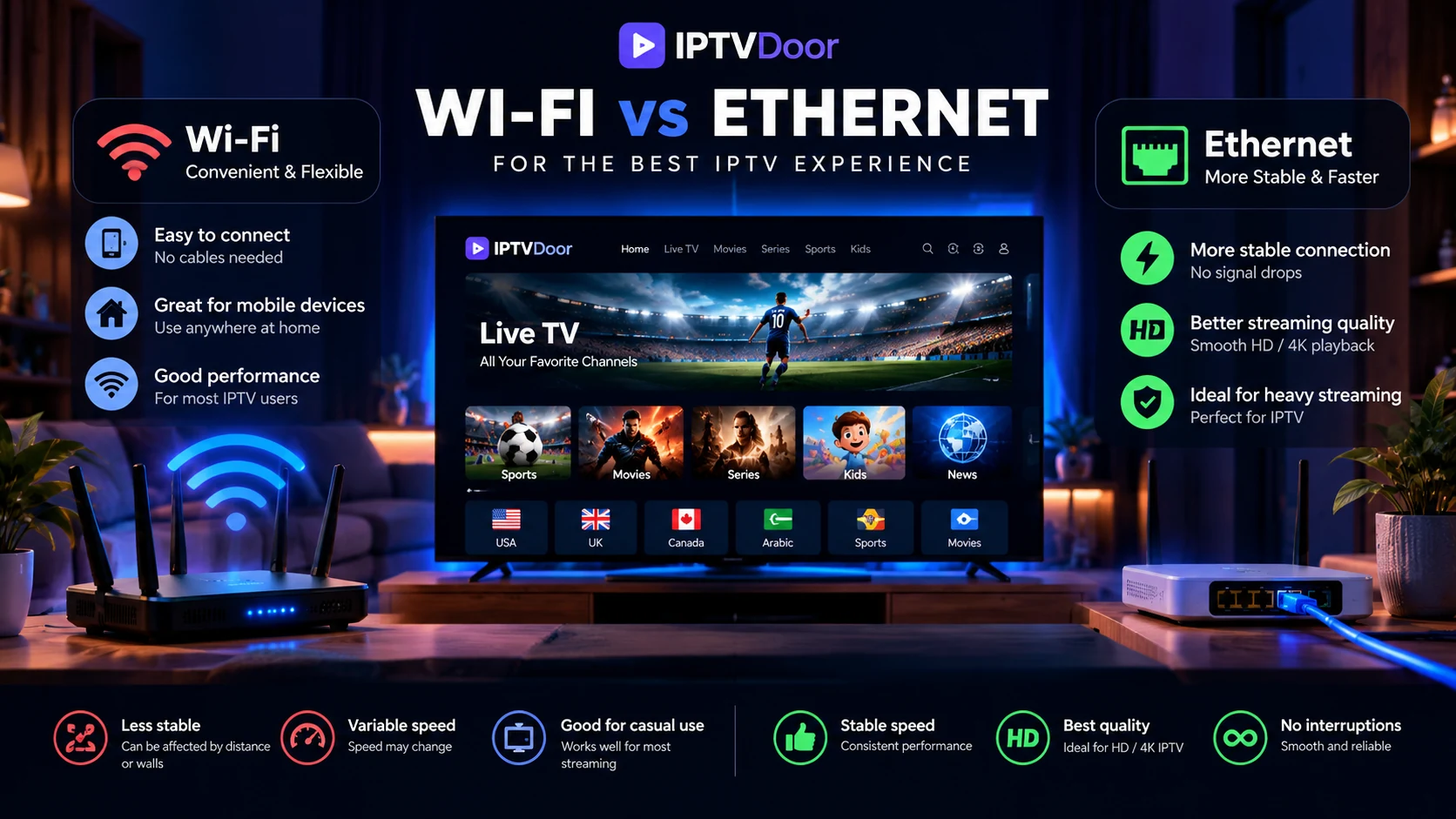
Both Wi-Fi and Ethernet can work, but the best choice depends on your home setup. Ethernet can provide a more consistent wired connection when the router and television are close enough. Wi-Fi is more convenient but can be affected by distance, walls, interference and other devices using the same network. For bandwidth planning, see our IPTV internet speed guide.
If you experience buffering or unstable playback, compare the same device on Wi-Fi and Ethernet when possible. This helps determine whether the problem is related to the local network rather than the service itself. Follow our IPTV buffering troubleshooting guide for the full diagnostic order.
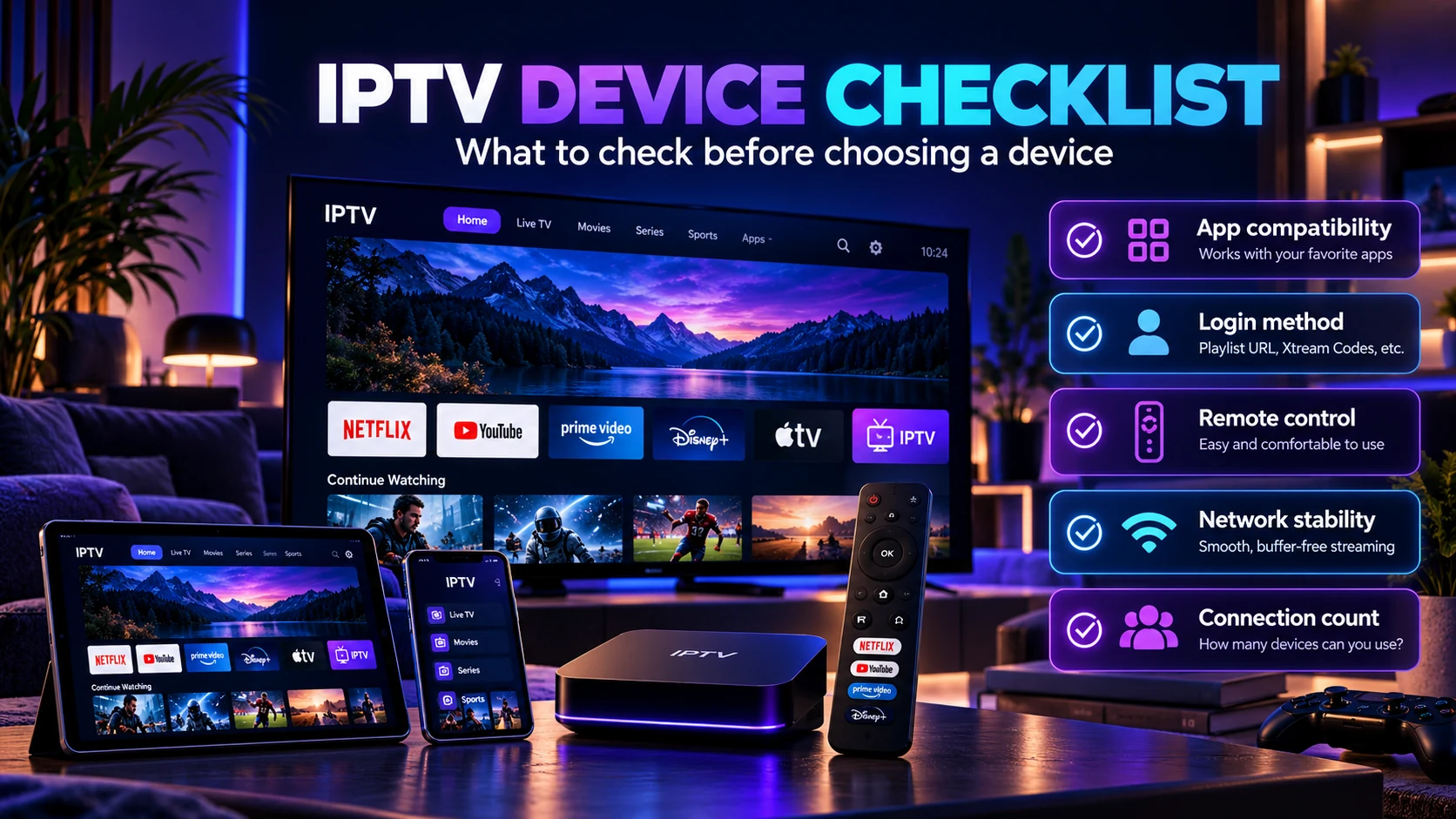
What to check before choosing a device
- Confirm the exact player app. Search the device’s app store before subscribing.
- Confirm the login method. Make sure the app supports the format provided by your service.
- Check remote-control usability. A phone-friendly player may not be comfortable on a television.
- Test your normal network. Use the same Wi-Fi or Ethernet connection you expect to use every day.
- Check simultaneous viewing needs. Device compatibility and connection count are separate questions.
If you are not sure how many streams your household needs at the same time, read our 1 vs 2 vs 3 IPTV Connections guide.
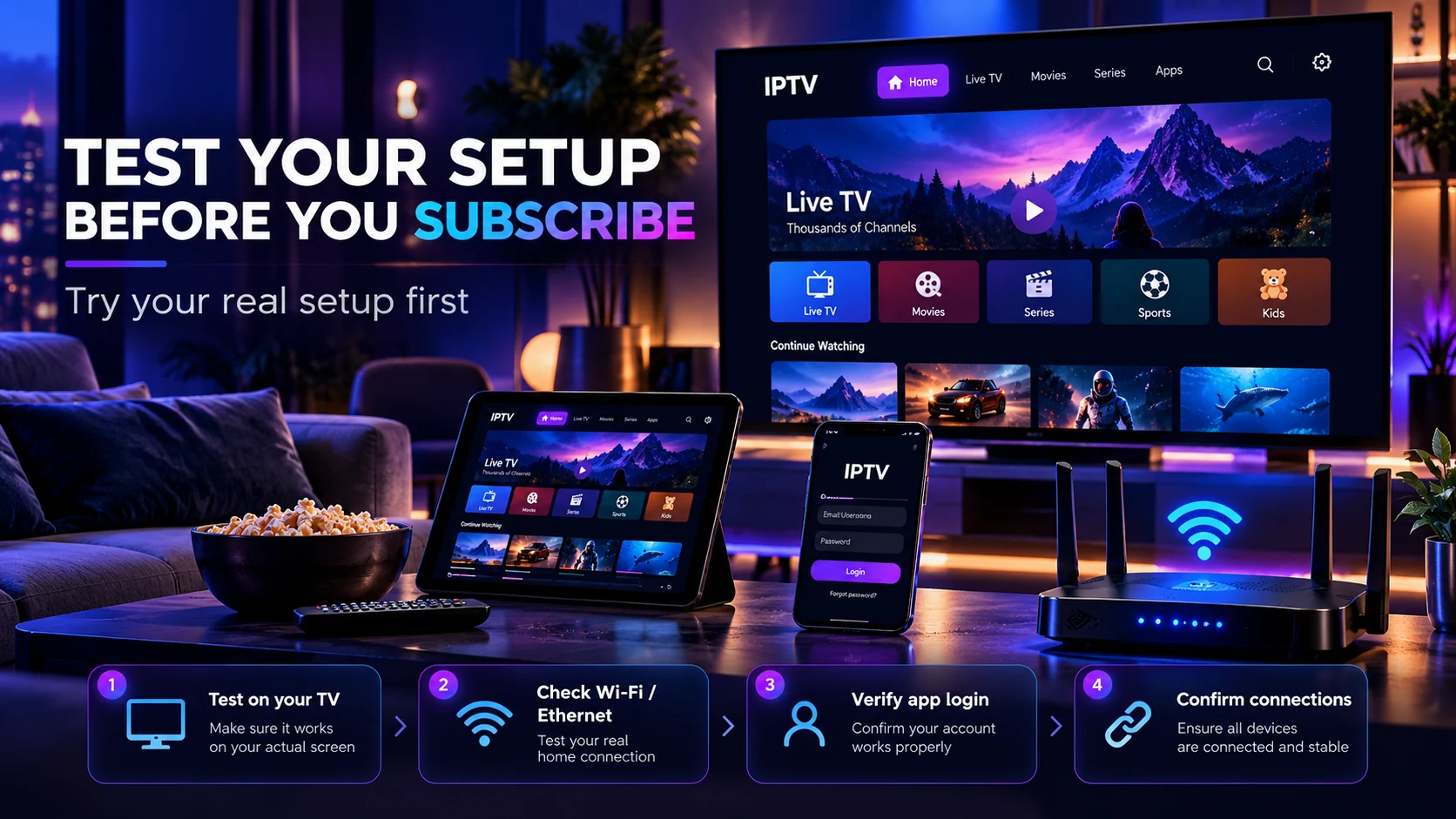
Test your device before choosing a long subscription
The safest way to confirm compatibility is to test the exact device, player and network you plan to use. Our IPTV free trial checklist explains what to test during a short trial so you do not judge the service from one quick channel check.
During the test, confirm app installation, login, your must-have channels, live playback, movies and series when included, navigation, support and the number of simultaneous streams you need.
Device compatibility and IPTV connections are different
A device can be fully compatible while your subscription still allows only one stream at a time. If two or three people regularly watch simultaneously, you need a plan that matches that usage.
Compare the current 2 Connections IPTV plans and 3 Connections IPTV plans when more than one screen needs to stream at the same time.
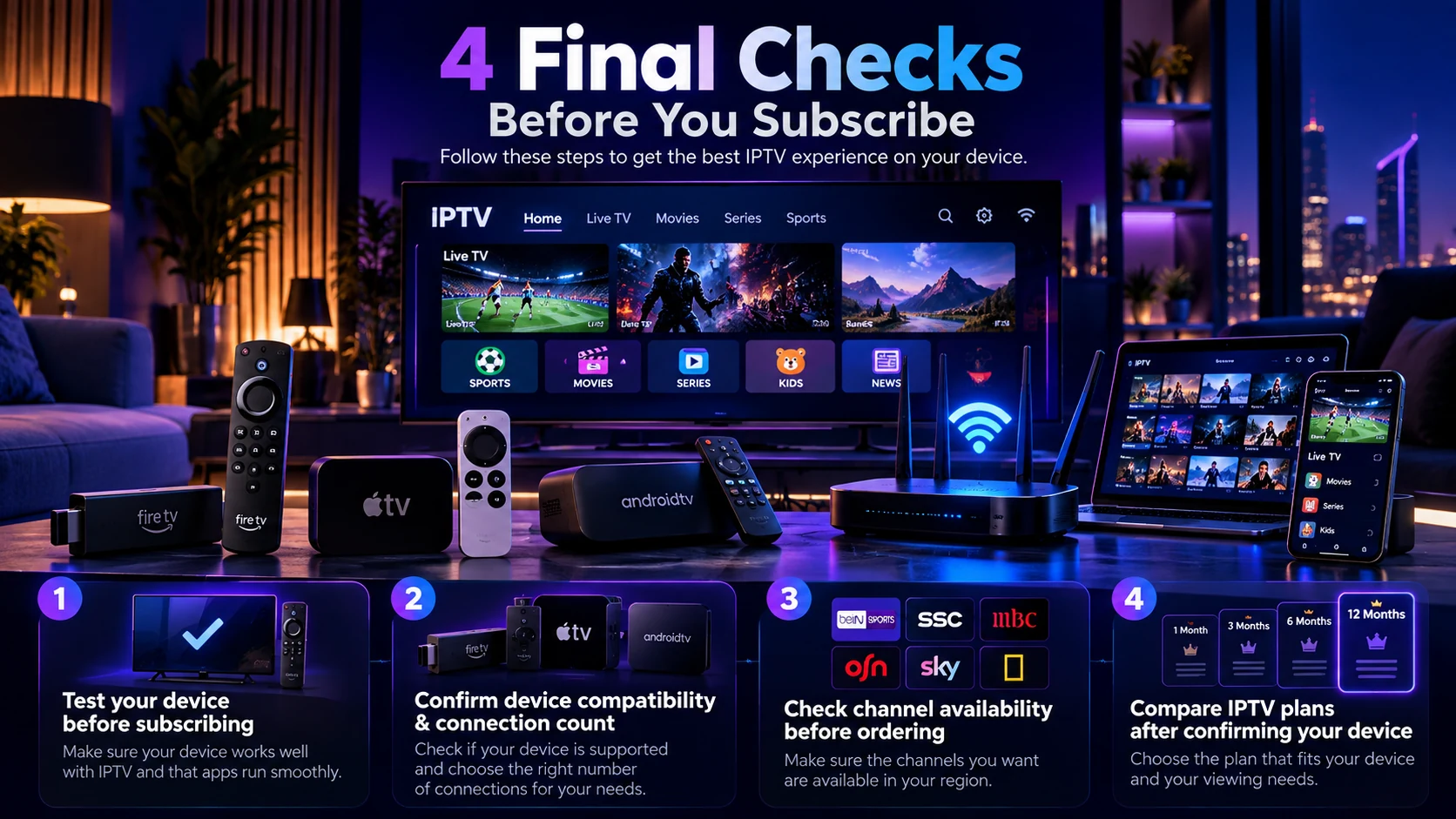
Check channel availability before ordering
Device compatibility does not guarantee that every channel or content category you want is included. Review the current IPTV channels and content list and confirm any specific must-have channel before ordering.
Compare IPTV plans after confirming your device
Once you know which device and player you will use, compare subscription duration and connection count separately. You can review the current IPTV subscription plans and pricing to choose the option that fits your viewing routine.
IPTV compatible devices FAQ
Can IPTV work on a Smart TV?
It can when the television supports a compatible player or another setup method supported by the service. App availability depends on the TV platform, model, region and software version.
Can I use IPTV on Android TV or Google TV?
Android TV and Google TV support downloadable apps, but you should confirm that the exact player you need is available on your device.
Can I use IPTV on Apple TV?
Apple TV 4K and Apple TV HD support apps from the App Store. Confirm that a compatible tvOS player exists for the service and login method you plan to use.
Can I use IPTV on more than one device?
You may be able to install a compatible player on several devices, but the number of streams that can run at the same time depends on your subscription’s connection limit.
Do I need a streaming box if my TV is already smart?
Not necessarily. If your television supports the player you need and performs well, the built-in app may be enough. An external streaming device can be useful when the TV is older or has limited app support.
What should I do if my TV does not support the player I need?
Check whether a compatible external streaming device such as an Android TV, Google TV, Fire TV or Apple TV device supports the player before replacing the television.
Final recommendation
Choose your IPTV device based on the exact player you need, the operating system, your remote-control preferences and the network available in the room where you watch. Test the real setup before committing to a long plan, then confirm channel availability and the number of simultaneous connections your household needs.
After you verify compatibility, you can compare IPTV Door plans, review the channel list, follow the free trial checklist, or contact IPTV Door support if you are unsure about your device before ordering.
