
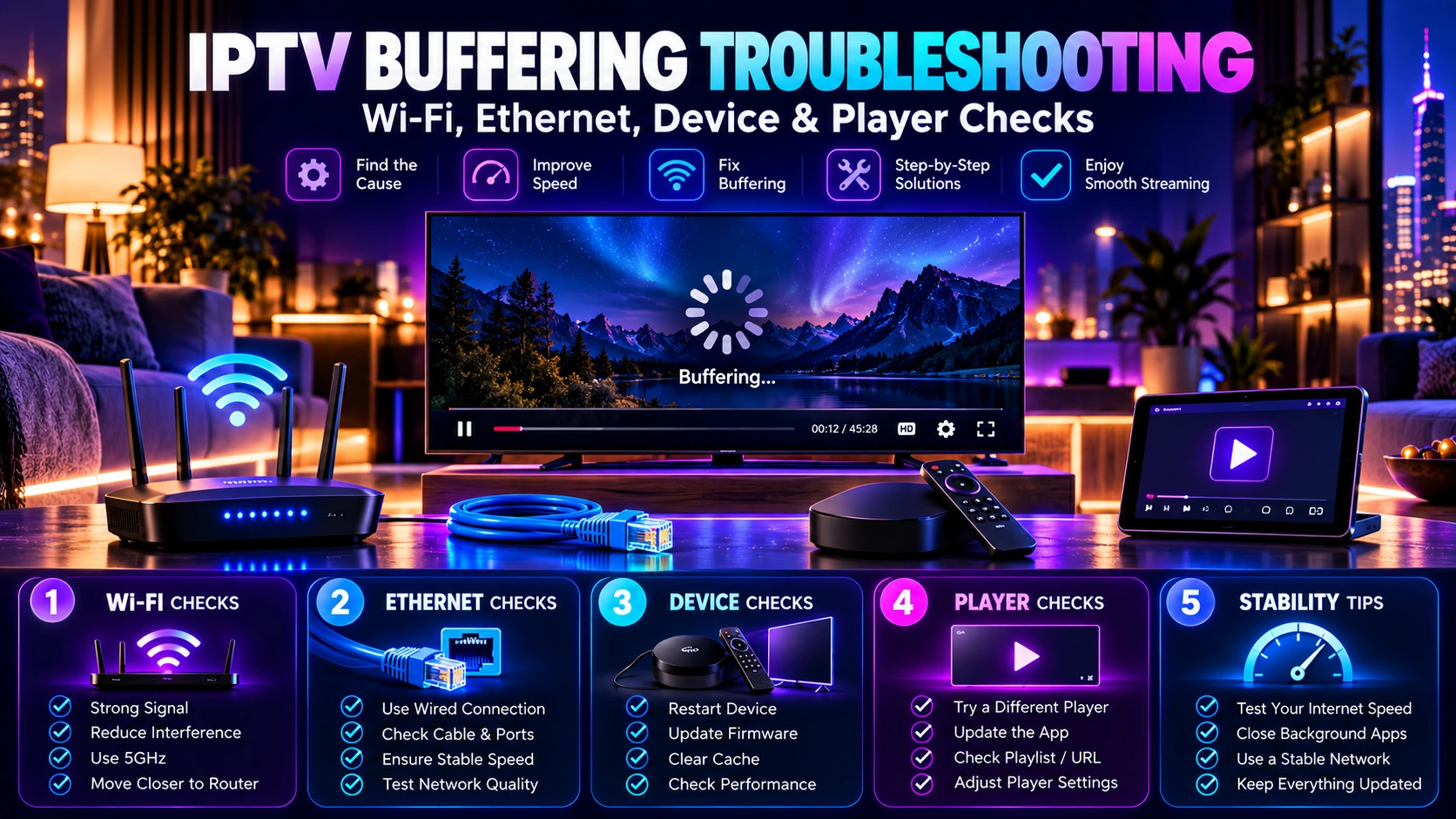
IPTV Buffering Troubleshooting Guide: Wi-Fi, Ethernet, Device & Player Checks
IPTV Buffering Troubleshooting Guide: Wi-Fi, Ethernet, Device & Player Checks
Quick answer: If IPTV keeps buffering, first test another channel, restart the player, compare Wi-Fi with Ethernet when possible, check another device, and verify whether the problem affects one stream or the whole service. Change one thing at a time so you can identify the real cause.
IPTV buffering, freezing or repeated playback interruptions can come from several different places: the home network, Wi-Fi signal, streaming device, player app, a single channel or a wider service issue. The fastest way to solve the problem is to isolate the cause step by step instead of changing many settings at once.
This guide gives you a practical troubleshooting order that works across Smart TVs, Android TV, Google TV, Fire TV, Apple TV, phones, tablets and computers. If you are still comparing services before subscribing, our IPTV subscription buyer’s guide explains how to compare playback quality with channels, devices, connections, trials, support and pricing.
Important: use IPTV services and content you are legally entitled to access. This guide focuses on ordinary playback and network troubleshooting.
IPTV buffering checklist at a glance
| Check | What it tells you |
|---|---|
| Try another channel | Whether the issue affects one stream or everything |
| Restart the player | Whether the app is temporarily stuck |
| Restart the device | Whether memory or device state is contributing |
| Check network status | Whether the device is still connected properly |
| Compare Wi-Fi with Ethernet | Whether wireless signal or interference is involved |
| Pause heavy downloads | Whether the home connection is congested |
| Test another device | Whether the problem is limited to one TV, app or box |
| Contact support with details | Whether the service needs investigation after local causes are ruled out |
1. First identify whether the problem affects one channel or everything
Before restarting the whole network, switch to several different channels or content categories.
- If only one channel buffers while others work normally, the problem may be limited to that stream.
- If many channels buffer on the same device, check the player, device and network.
- If every device in the home has problems at the same time, the home connection or a wider service issue becomes more likely.
This first test prevents you from changing your router because of a problem that may only affect one channel.
2. Restart the player app
Close the IPTV player completely and reopen it. On some TVs and streaming devices, leaving an app open for a long time can cause slow navigation, playback errors or memory pressure.
If the problem disappears after reopening the app, monitor it before changing anything else. If buffering returns quickly, continue with the next checks.
3. Restart the streaming device
A full device restart can clear temporary software problems that an app restart does not fix. This applies to Smart TVs, Android TV and Google TV devices, Fire TV, Apple TV, phones, tablets and computers.
If your device is generally slow, has little free storage or has not been restarted for a long time, playback problems may be more noticeable.
If you are unsure whether your hardware is a good fit, see our IPTV compatible devices guide.
4. Check the device’s network status
Open the network settings on the streaming device and confirm that it is connected to the expected Wi-Fi or Ethernet network. Some platforms also provide built-in connection diagnostics.
A device can appear connected while the connection is weak or unstable. If the platform offers a network diagnostic or speed test, use it as one data point, but do not judge the entire setup from a single peak speed result.
5. Restart the router and modem when several devices are affected
If buffering affects several channels or multiple devices, restart the home router and modem according to the manufacturer’s instructions. This can clear a temporary connection or routing problem.
After the network comes back online, wait until the device is fully reconnected and test the same channel again before making more changes.
6. Compare Wi-Fi with Ethernet
When possible, test the same streaming device using Ethernet. A wired test helps remove Wi-Fi signal strength, wireless interference and distance from the router as variables.
If playback becomes stable on Ethernet but buffers on Wi-Fi, focus on the wireless setup rather than the IPTV account.
If both Ethernet and Wi-Fi show the same problem on several channels, continue checking the device, player and overall connection.
7. Improve the Wi-Fi test before blaming the service
Wi-Fi performance can change depending on where the router and streaming device are located. Walls, floors, furniture, nearby networks and other wireless devices can affect the signal.
Try these simple comparisons:
- move the streaming device closer to the router if practical;
- avoid hiding the router inside a cabinet;
- test another Wi-Fi band if your router and device support it;
- pause large downloads, cloud backups or other heavy streaming during the test;
- compare the same channel again under the improved conditions.
The purpose is not to permanently rearrange your home. It is to find out whether the wireless connection is part of the problem.
8. Check whether the home network is busy
Several devices can share the same internet connection at once. Large downloads, game updates, cloud backups, video calls and other high-bandwidth activity can reduce the capacity available to a TV or streaming device.
For a clean test, pause other heavy activity for a few minutes and replay the same channel. If the problem improves, the household network load is an important factor.
9. Test another device on the same network
Use another compatible device with the same account when your service terms allow it. This can be a phone, tablet, second TV device or computer.
- If the second device works normally on the same network, the first device or player deserves closer attention.
- If both devices buffer in the same way, the network or stream itself becomes more likely.
Do not run simultaneous streams beyond the connection limit of your plan while testing. If you are unsure how connection limits work, read our 1 vs 2 vs 3 IPTV Connections guide.
10. Check the player app
The player is part of the playback chain. Make sure it is up to date when updates are available, and avoid changing advanced playback settings unless you understand what the option controls.
If one compatible player consistently has problems while another supported player works normally on the same device and network, the app itself may be involved.
Before changing players, confirm that the alternative is supported by your service and available legitimately for your device.
11. Check device storage and software updates
Very low storage, outdated system software or a generally overloaded device can affect app performance. Review the device settings and remove unused apps only when necessary.
Install normal operating-system and app updates from official device sources. Avoid unofficial “performance booster” tools that promise to fix streaming by changing unknown system settings.
12. Test at the time when buffering normally happens
A test at a quiet time does not always reproduce an evening problem. If buffering usually occurs during your normal viewing period, repeat the troubleshooting during that period.
Compare:
- the same device;
- the same network connection;
- the same player;
- several channels;
- Wi-Fi versus Ethernet when possible.
Keeping the test conditions consistent makes the result more useful.
13. Do not rely on one speed-test number
A speed test is useful, but streaming quality depends on more than the highest number shown for a few seconds. Stability, wireless signal, packet loss, local congestion and device performance also matter. For practical bandwidth ranges and household planning, see our IPTV internet speed guide.
If a speed test looks good while playback still buffers, continue with the device and Wi-Fi/Ethernet comparisons instead of assuming the network is perfect.
14. Check whether the issue is limited to a specific content type
Compare live TV with movies or series when your plan includes them. If only one section of the service has a problem, tell support exactly which category is affected.
You can review the current IPTV channels and content list when checking whether the issue is limited to a particular channel or category.
15. Use a free trial to test stability before a longer plan
If you are still choosing a service, use the trial period to test the exact TV, player and home network you intend to use after purchase. Do not test only on a phone if the main device will be a television.
Our IPTV free trial checklist gives you a structured way to test playback, channels, devices, support and simultaneous connections before choosing a plan.
When should you contact IPTV support?
Contact support after you have collected enough information to make the issue reproducible. A useful support message includes:
- the device model or device category;
- the player app you are using;
- whether the problem affects one channel or many;
- whether another device has the same problem;
- whether Ethernet and Wi-Fi behave differently;
- approximately when the issue occurs;
- what troubleshooting steps you already tried.
This is much more useful than sending only “it buffers.” You can contact IPTV Door support with those details when local checks do not resolve the issue.
What not to do when IPTV buffers
Do not change many settings at the same time
If you change the player, DNS, router, Wi-Fi band and device settings together, you will not know which change helped or caused a new problem.
Do not install unknown apps or tools
Use trusted app stores and official device sources. Avoid random “fix” applications that ask for unnecessary permissions.
Do not assume every problem is the provider
Test another channel, another device and the network before drawing that conclusion.
Do not assume every problem is your Wi-Fi
If a single channel fails while everything else works, changing the whole home network is unlikely to be the most useful first step.
IPTV buffering FAQ
Why does IPTV buffer on Wi-Fi but not Ethernet?
This usually points toward a wireless-network factor such as weak signal, distance, interference or congestion. A wired comparison is one of the clearest ways to isolate Wi-Fi from the rest of the setup.
Why does only one IPTV channel buffer?
If other channels work normally on the same device and network, the issue may be limited to that specific stream. Note the channel and time, then contact support if it continues.
Can an old Smart TV cause buffering?
Older hardware or software can contribute to slow app performance, but buffering can also come from the network or stream. Compare another device on the same network before deciding the TV is the cause.
Should I restart my router every time?
No. Restarting is a useful diagnostic step when several devices or channels are affected, but repeated restarts should not replace identifying the underlying cause.
Can too many simultaneous streams cause problems?
Running more streams than your plan permits can cause account or playback issues. Choose a connection count that matches how many viewers need to watch at the same time.
Final troubleshooting order
- Test several channels.
- Restart the player app.
- Restart the streaming device.
- Check network status.
- Restart the router if the issue affects several devices or channels.
- Compare Wi-Fi with Ethernet.
- Pause other heavy network activity.
- Test another compatible device.
- Check app and device updates.
- Contact support with clear details if the problem remains.
Once your setup is stable, you can review IPTV subscription plans, confirm channel availability, check device compatibility, or compare 2 Connections IPTV plans and 3 Connections IPTV plans for households that need simultaneous streams.
